How to Remove Subtitles from Video in VLC
Open the subtitle-track menu and choose Disable. If the words disappear, VLC was displaying a separate caption source; the picture itself does not need repairing. If they stay, investigate the remaining text before trying another tool.
RemoveText.video · Published · Updated
That is the first useful test when you want to remove subtitles from video in VLC. It also exposes an important difference: hiding subtitles while you watch does not remove them from the file you send to someone else. Decide whether you need a viewing preference or a new deliverable before changing anything further.
Remove subtitles from video in VLC during playback
These steps use the Windows desktop VLC 3.x menu terminology documented by VideoLAN. Menu placement can differ on macOS or another release; use the subtitle-track control offered by your build.
- Open the video and pause where a subtitle is clearly visible.
- Open Subtitle > Sub Track.
- Choose Disable rather than a language entry.
- Resume playback, then return to the same moment to inspect the result.
VideoLAN's desktop menu guide identifies the subtitle-track selector. You are changing playback, so there is no export to wait for.
If only one line disappears, inspect the line that remains. A video can contain an embedded translation over footage that already has words burned into it. Turning off the selectable translation will leave those original words visible. This is useful evidence, not a reason to repeat the same menu choice.
Read the result before deciding what to change
| What happens | What it suggests | Next check |
|---|---|---|
| All dialogue subtitles disappear | VLC was rendering a separate caption source | Stop here for viewing, or prepare a separate file for delivery. |
| One set disappears but another remains | Two caption sources may be present | Inspect the remaining words independently. |
| Words appear again when you reopen the video | A default preference or external subtitle file may be involved | Check the next two sections. |
| A filename flashes briefly at the beginning | You may be seeing the player's on-screen display | Check the media-title setting. |
| Text remains with subtitle display disabled | It may be baked in, or supplied by another overlay | Compare the source and another player before choosing repair. |
A single paused frame cannot identify every caption format. Test a few speaking moments and any scene with a second line or translation. Keep a note of what actually disappears.
Keep subtitles off by default on Windows
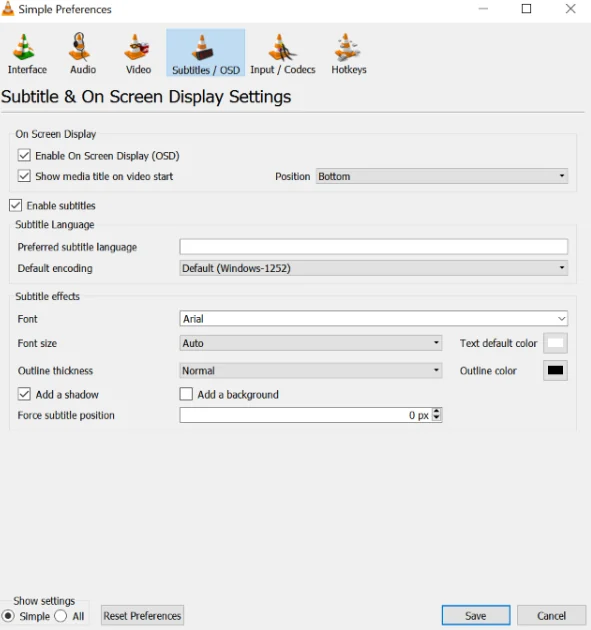
For repeated viewing, VideoLAN's subtitle documentation gives the Windows-style preference path:
- Open Tools > Preferences.
- Select Subtitles/OSD.
- Clear Enable subtitles.
- Save, then reopen the video and check the same section.
This changes how VLC behaves. It does not rewrite your library of videos or remove subtitle files from their folders. Someone opening the same video with their own player settings can still see an included track.
If you later need captions, restore the setting and choose the desired language. For a single presentation, changing only the current video's track may be easier than remembering to reverse a global preference. Avoid resetting unrelated playback settings while troubleshooting one subtitle problem.
Check for a matching subtitle file beside the video
Look in the video's folder for files such as lesson.srt, lesson.en.srt, or lesson.ass beside lesson.mp4. VLC can discover subtitle files through filename matching; the behavior is documented in VideoLAN's source settings.
Make a temporary test folder and copy only the video into it. Open that copy directly, without loading a playlist or adding a subtitle file. Compare its available subtitle tracks with the original's, using the same subtitle preference for both. Keep the original folder intact.
If a track disappears from the menu or the captions stop appearing only in the isolated copy, an external file was likely involved. Inspect your configured subtitle search locations if VLC still finds one. This narrows the cause; it does not prove every caption has been stripped from the container.
For a delivery that should omit an external translation, leave that subtitle file out of the delivery folder. Do not delete your only copy if future language versions may need it. Renaming an MP4 extension will not remove an embedded subtitle track.
Also remember that a subtitle track can contain images. An image-based subtitle is not automatically burned into the video. The distinction is whether the player can select it separately, not whether its font can be changed.
A brief filename overlay is a different setting
VLC may display the media title when playback starts. If the unwanted words match the filename and vanish shortly afterward, investigate that display before treating them as dialogue subtitles.
The VideoLAN Windows FAQ documents a Show media title on video setting under advanced Video preferences. Use that setting for the title overlay; disabling subtitle tracks addresses a different source.
A screen recording can capture the player's overlay as part of a new video. In that recorded copy, the captured words may now be baked into the picture even though they were originally generated by VLC. Check which file you are examining.
Need a file that contains no subtitle tracks?
Closing VLC after disabling subtitles does not save a newly edited video. Neither does saving a playlist. A recipient can reenable an embedded track because the track is still present.
For separate subtitle streams inside MP4 or MKV files, use a workflow that deliberately excludes those streams from a new container. FFmpeg supports explicit stream selection and copying, described in its official documentation. With compatible streams and an appropriate output container, this can avoid re-encoding the video.
Follow the subtitle-track removal guide for the commands and verification steps. Check which audio languages, commentary tracks, and other streams should remain; removing subtitles should not accidentally discard a soundtrack you need.
Keep the source and give the new file a distinct name. Test the new file in a separate folder without companion subtitles. That prevents a leftover external file from making a successful track removal look unsuccessful.
No subtitle stream listed does not always mean burned-in words
Some closed-caption data travels inside the video bitstream rather than appearing as an ordinary, separate subtitle stream. FFmpeg's bitstream-filter documentation explicitly describes caption data carried this way.
If captions still respond to a player's controls, investigate that caption format even when a basic stream list looks empty. Do not immediately conclude that the lettering is part of the image.
This is a separate technical case from deleting an SRT track. A command intended to remove all supplemental video data can also remove information you wanted to keep, so identify the format before using one. There is no need to repair pixels that were never replaced by text.
When the subtitles really are burned into the picture
VideoLAN's FAQ confirms that VLC cannot disable hardcoded subtitles. Its subtitle switch controls rendered caption sources; it cannot recover the scene underneath letters already present in the frames.
Look for the original editing project or a clean master first. If neither exists, consider whether an edge crop or a deliberate replacement panel fits the composition. Cropping changes the frame, and covering changes the design.
For authorized footage that needs to retain its framing, burned-in subtitle cleanup is another option to assess. It reconstructs the affected picture area. It does not simply delete a subtitle track, and it cannot promise exact recovery of hidden detail.
Use a representative section containing movement and the longest subtitle line. A clear result on a plain wall does not establish how a hand, face, or detailed background will look.
Finish with the check your task actually needs
For personal viewing, replay the relevant scenes with the preferred caption setting. For a presentation, test on the actual playback computer because its defaults may differ.
For delivery, inspect the new file and its included tracks, then reopen it without companion subtitle files. Check several moments, including an early caption, a later dialogue exchange, and any translated sign. Confirm that the intended audio still plays.
Keep the original video and subtitle assets separately. That preserves the option to restore accessibility captions or prepare another language version without trying to reconstruct material you already had.