Can I restore the sound after removing it?
Use the original file or reattach the original soundtrack in an editor. The downloaded silent copy does not contain the removed audio, which is why keeping the source matters.
Video cleanup guide
To batch remove audio from videos without uploading them, open RemoveText.video’s audio removal tool and select your files together. Compatible MP4, MOV and WebM files are processed automatically, one at a time, in your browser. Download each Ready result, or use Download All as ZIP when at least two files are ready. This removes every audio track, including speech, music and ambient sound.
Published · Updated
A silent copy is useful for product clips that will receive a new voiceover, background footage for a presentation, or a set of videos that should not carry their original recording audio. Keep the originals in a separate folder so you can recover the soundtrack later.
This tool removes all audio tracks together. It cannot remove only background music while keeping a speaker, reduce noise, or preserve one language track while deleting another. Those jobs need an audio editor or a tool designed to separate sounds. If you only want quieter playback, use the player’s volume control instead.
Removing audio also does not erase words drawn into the picture. If the clip contains burned-in captions, they remain visible after this workflow. The hardcoded versus soft subtitles guide explains how to identify those two cases.
Open the Remove audio from video tool. This particular tool is free to use without signing in or spending credits. The video files are processed on your device rather than sent to the site’s video-processing servers.
Start with a manageable group of files, especially on a phone or a computer with limited memory. The queue can contain up to 20 files, including completed and failed entries. A file extension alone does not guarantee compatibility: the actual container and video codec must also be readable and safely copied.
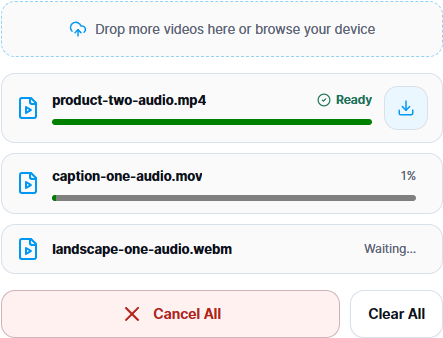
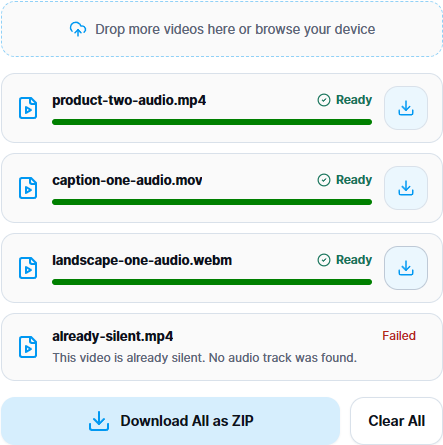
Ready means a downloadable result is available for that row. It does not mean the file has already been saved to your device. A batch containing one failed clip can still have useful results: download the successful rows, then deal with the failure separately.
Click the download icon beside a Ready file to save it individually. Its name gains a -no-audio suffix: for example, product-demo.mp4 becomes product-demo-no-audio.mp4. The output keeps the input’s supported container extension; this workflow is not a format converter.
When at least two rows are Ready, Download All as ZIP becomes available. It saves removetext-silent-videos.zip containing the completed outputs at that moment. Waiting, failed and cancelled files are not included. If work is still running, wait for it to finish before downloading a ZIP intended to contain the whole successful batch.
Extract the archive into a new folder and count the videos. Compare that count with the Ready rows, rather than with the number of files originally selected. If two outputs would have the same name inside the ZIP, a number such as -2 is added to keep both entries. Downloading an individual file remains useful if you only need one result or do not want an archive.
Open a downloaded -no-audio file in your usual player. Make sure you have opened the new copy, turn the player volume up, and watch the beginning, middle and end. Check that the picture plays, its orientation is correct, and the clip reaches the expected ending. Repeat for each output before handing over the batch.
Listening is a useful check, but it cannot distinguish a missing audio track from an audio track containing silence. A player might also be muted. If your delivery requirement specifically says no audio streams, inspect the file’s tracks with a media inspector.
For a command-line check, use ffprobe from FFmpeg. Run: ffprobe -v error -select_streams a -show_entries stream=index,codec_name -of json "product-demo-no-audio.mp4". Replace the quoted filename with your actual output path. A successfully inspected file with no audio streams reports an empty streams list. Any listed stream means audio is still present; an error message means the check failed, not that the file is silent.
You can run the same command on the original to see its audio streams. Keep the original and result filenames in your handoff notes so the check can be reproduced. For a batch, inspect every output when no-audio delivery is a firm requirement.
In our local test, we processed three six-second clips with test tones added to licensed footage. These tones are synthetic test signals, not the footage’s original recorded sound. Independent ffprobe checks found zero audio streams in all three downloaded outputs. All 180 encoded video packets in each output matched the corresponding input; this confirms video copying for these samples, rather than a guarantee for every possible file.
You can download the same inputs and actual browser-generated results below. The controlled video examples credit the original footage. For WebM, the input container reports 6.010 seconds including the audio tail, while the silent result reports 6.000 seconds; all 180 video packets remain.
| Test file | Audio tracks: input → output | Video packets copied | Download samples |
|---|---|---|---|
| product-two-audio.mp4 | 2 → 0 | 180 of 180 identical | Input · Silent output |
| caption-one-audio.mov | 1 → 0 | 180 of 180 identical | Input · Silent output |
| landscape-one-audio.webm | 1 → 0 | 180 of 180 identical | Input · Silent output |
For a compatible file, the tool copies the already encoded video stream into a new container while leaving the audio tracks out. It does not apply a new video quality level. If it cannot preserve the video through that path, it reports a failure rather than silently switching to video re-encoding.
Before making a result available, it checks that the output has no audio tracks and retains the video track count, codec, dimensions and rotation. That does not replace checking playback in the player or editing software where the file will actually be used.
The whole-file size or checksum can change because this is a new file with different contents. Removing a small soundtrack may only make a small difference to total size, and container overhead can change too. Do not use a particular percentage of size reduction as the pass condition. If your main goal is compression or a different video format, use a separate export workflow and review that output’s picture quality.
Read the message attached to the affected file. A Failed label is not always evidence of a damaged video: a file that already has no audio track is also reported there. Other valid files continue through the queue.
There is no individual Retry or remove-row control in this workbench. Save all useful Ready outputs first. Then use Clear All and select a smaller group or a corrected file. Clearing removes the current list and its downloadable results, so do not use it as your first response to one failed item.
| What you see | What to do |
|---|---|
| This video is already silent. No audio track was found. | There is nothing to remove. Keep that original as the silent copy, and verify its tracks if required. It will not appear as a new output in the ZIP. |
| Choose a file smaller than 100 MB. | Prepare a smaller copy in an editor, or use a desktop workflow for the original. Renaming the file will not reduce its size. |
| Choose up to 20 videos at a time. | Only the available places in the current batch are filled. Save its results, clear the list, and choose the remaining videos as another batch. |
| Your browser ran out of available memory. | Download completed outputs, close unnecessary tabs, and try fewer or smaller files. Large ZIP archives also need working memory; use individual downloads when that is more practical. |
| Unsupported format, codec, or a file that cannot be processed without re-encoding. | Return to the source and export a common compatible format, or remove its audio in a desktop editor. Changing .mov to .mp4 does not change its contents. |
| The video could not be read or the silent video could not be verified. | Check the original in a player and try a fresh export from the source. Do not hand over a file whose result cannot be verified. |
Cancel All is available while work is active. It stops the current processing and cancels waiting files; already completed rows remain available to download. Cancelling does not alter your originals. To process cancelled files again, save the completed results, clear the batch, and select the files you still need.
Treat this as a current-tab workflow. Its outputs do not enter your account’s History, and refreshing or closing the page does not recover the list. Finish by saving the files, checking them, and only then clicking Clear All. For a large folder, work in named groups so you can tell which originals have a checked silent copy.
Use the original file or reattach the original soundtrack in an editor. The downloaded silent copy does not contain the removed audio, which is why keeping the source matters.
It removes the audio contained in the files you select. Music added by a platform after you publish is a separate step; check the platform’s own editing and posting settings.
Tips & Resources · Updated
A clear way to distinguish viewer controls, subtitle tracks, and words that have actually been rendered into the picture.
Guide · Updated
Remove hardcoded subtitles before translation with a workflow that separates visual repair, caption authoring, and language QA.