How-to Guides · Updated
How to Remove Text in CapCut
A current guide to separating a removable CapCut layer from text that has already become part of an exported video.
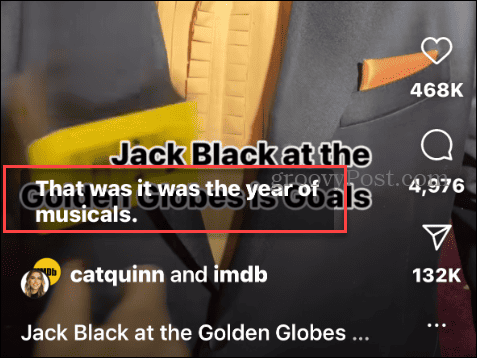
A Reel can show a sentence beneath the post, small automatic subtitles, and large animated words across the picture at the same time. To remove captions from Instagram Reels, first identify which of those you want to change. They do not share one removal switch.
RemoveText.video · Published · Updated
For a creator reusing an older video, the key question is whether the lettering still exists as an editable element. If it does, return to that project. If you only have a captioned export, inspect the actual file before deciding that it needs visual cleanup.
The appearance gives you a clue, but the control that changes the words is more useful. Bold lettering is not automatically permanent; an ordinary-looking subtitle may already be part of the image.
| What you see | Where to check | What removal means |
|---|---|---|
| A description, hashtags, or promotional sentence below the Reel | The post's caption field | Edit the post text; the video picture is unaffected. |
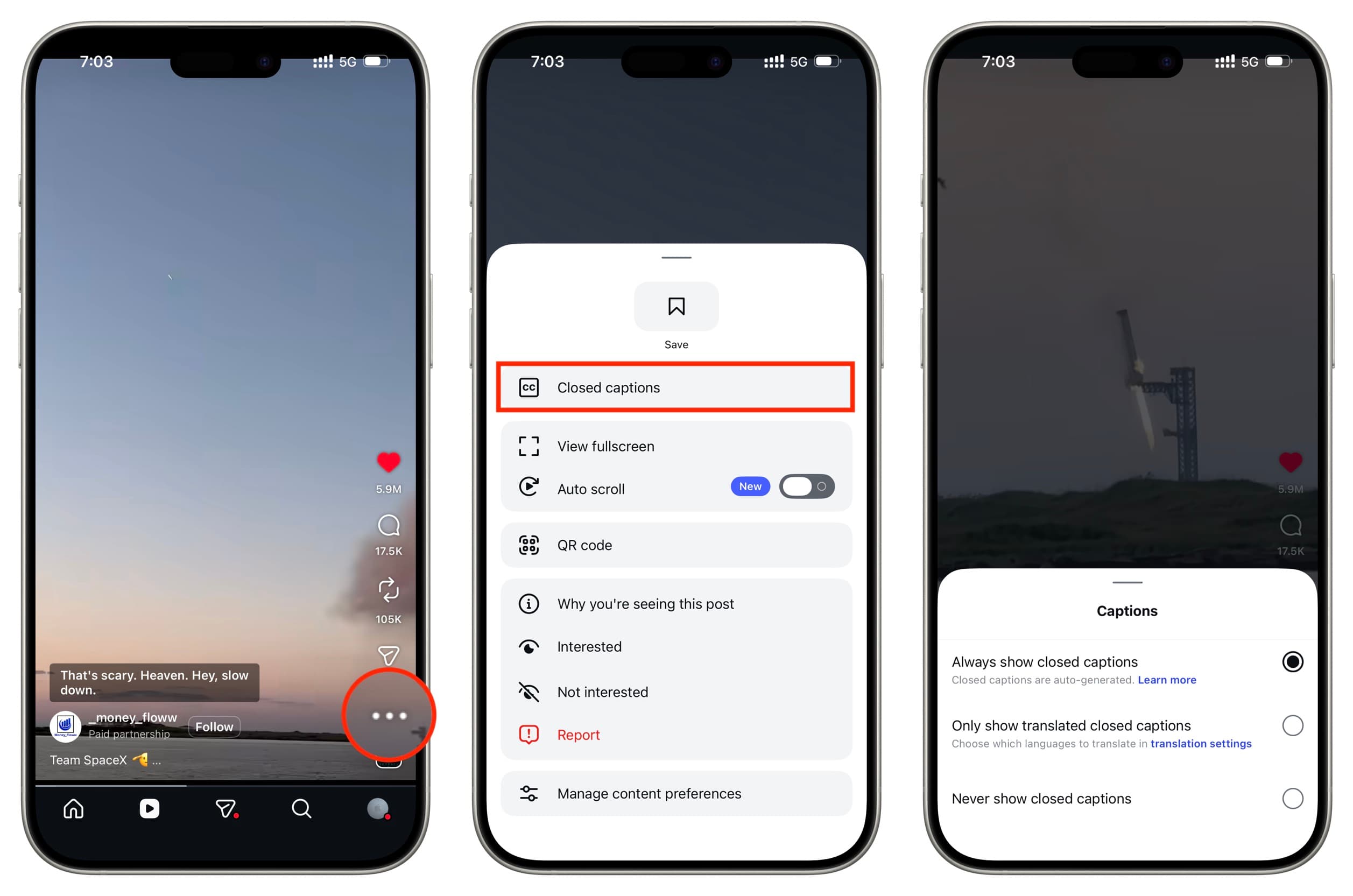
| Automatically displayed speech captions | Instagram's closed-caption controls | Change how those captions are displayed. |
| Text or a Captions sticker you can still select in a draft | The original draft or editing project | Remove or revise that editable item before exporting. |
| Words that remain in the exported picture | The source file and original project | Obtain a clean export or assess a repair. |
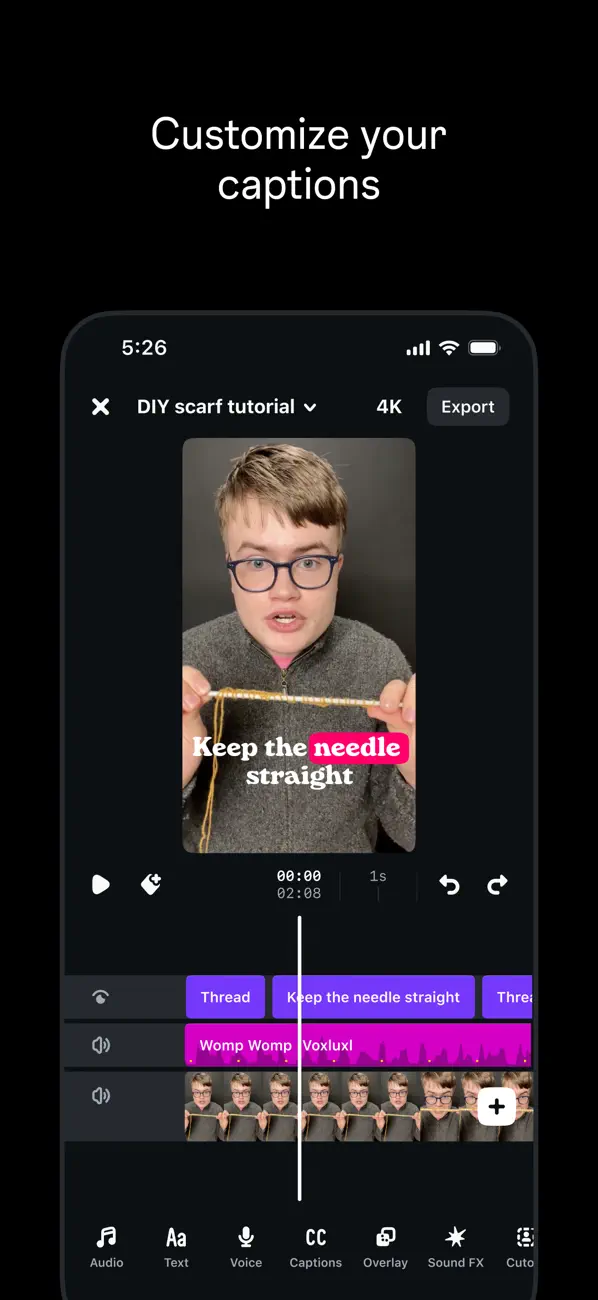
For example, a highlighted word that grows as someone speaks could come from an editable caption sequence in the original editor. After export, that same animation can become part of the video image. The font does not tell you whether the project still exists.
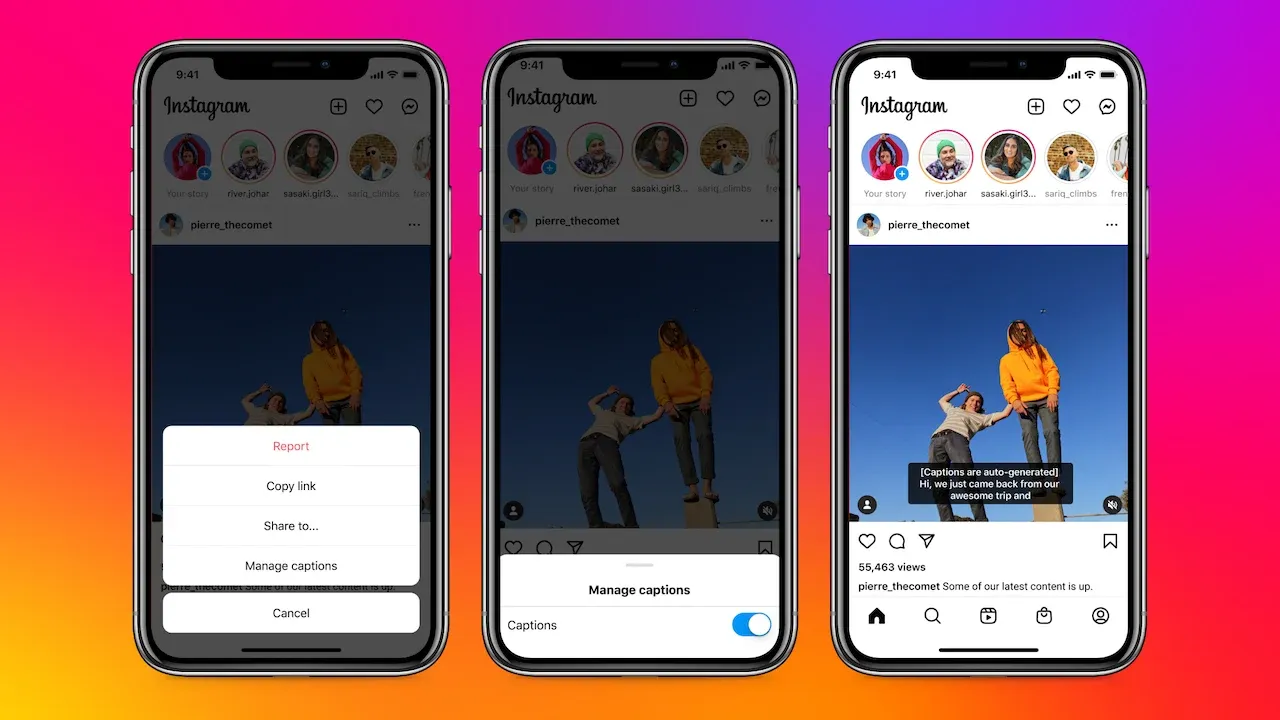
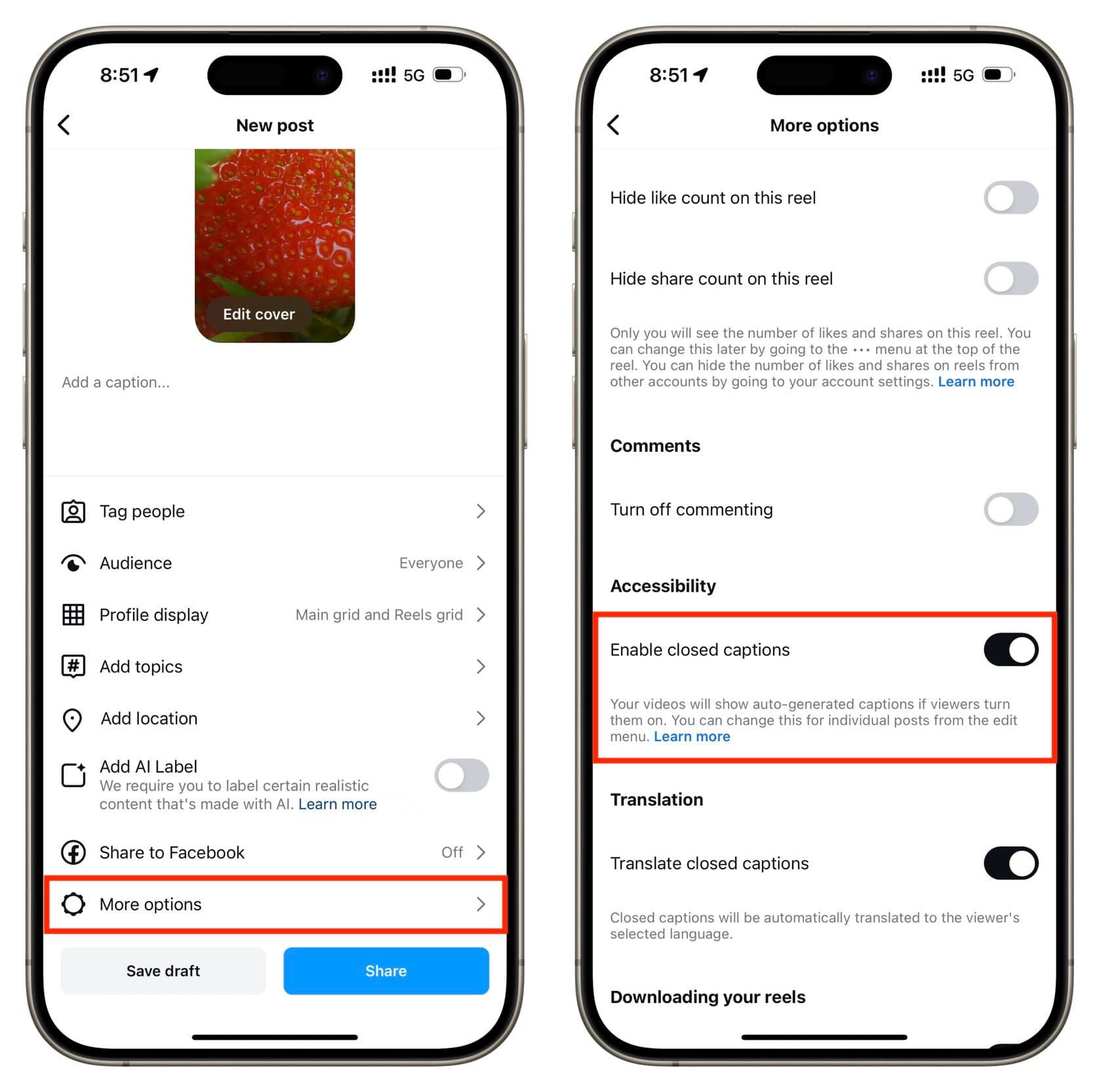
To remove captions from Instagram Reels that use the platform's automatic closed captions, turn off the creator setting labeled Enable closed captions. Instagram's creator help places it within additional publishing settings, with labels such as More options or Advanced settings depending on the interface. The help also covers managing captions on previously shared Reels. Replay the Reel afterward to confirm which caption layer changed.
Treat this separately from changing the description. Instagram's Reel management guidance uses Edit for details such as the post caption and location. Editing that caption field does not remove words inside the video frames.
If the wording is still selectable in an unpublished draft, revise it there before sharing. Check the full draft afterward so you do not leave a second text item or sticker behind.
Instagram: caption controls for Reels and Stories
Look for the original camera recording, a textless export, and the project used to make the Reel. A saved social copy may contain changes that were added late in the edit; it is not necessarily your best source.
Open the project and locate the caption item at a moment when the unwanted words appear. If removing or disabling that item leaves the picture intact, make a new export from the project. If you only need to correct one word, editing the text there avoids unnecessary image reconstruction.
In Edits, Instagram documents selecting the captions layer to change its text and styling. Its download instructions describe Projects → your project → Next → Download. Review the project before downloading; a new export will still contain any visible caption layers you leave in it.
For a CapCut source, follow the CapCut text-removal guide. The useful asset is the editable project, not merely another copy of the same captioned MP4.
Keep both a clean master and the captioned delivery. That gives you a starting point for the next style change without repeating this problem.
Open the file in a player outside Instagram. Disable any available player captions and check whether the words are still part of the picture. Also check device-level live captions if you use them. A missing caption button alone does not establish that the lettering is burned in.
If the video contains the words and no editable source remains, you can try visual cleanup on your own footage or a file you have permission to edit. Begin with a short representative section exported from your editor, including the hardest movement.
This workflow works on a file you supply. It does not connect to your Instagram account, import a Reel link, edit the post description, or replace the published Reel. Replacement captions are added afterward in your editor.
A word-by-word caption may change width, jump upward, or grow on an emphasized syllable. Scrub to the widest line and the largest animated word. A box that fits the first frame may miss the next one.
Moving words must remain inside the selected areas. A large rectangle covering their whole path also includes more background, sometimes a face or a moving hand. If the required area becomes too large, returning to the source or choosing a different edit may produce a more usable result.
Use separate selections for disconnected caption blocks when possible. For an opaque backing box, selecting only the letters will leave the box behind; removing the full box requires reconstructing everything it covered. Our opaque-caption examples show why deleting visible text does not guarantee a clean background.
Check decorative outlines and shadows closely. They can leave fragments even when the main letter shapes are gone.
After you remove captions from Instagram Reels, inspect the output before adding new lettering. Watch the former caption area during gestures, camera movement, and cuts. Reject a distracting smear rather than hiding it beneath the next caption and discovering it later.
Check the beginning, ending, and sound synchronization. Cleanup re-encodes the file, and timing or encoding details can change; see the processing standards when preparing the new edit.
Then add accurate replacement captions where your delivery needs them. Read every line against the speech and preview the Reel with Instagram's visible controls. Check whether automatic captions would create an overlapping second set.
Save the reviewed file separately. You can decide how to publish it without first deleting the original post. Processing a new video does not update the old post or transfer its engagement.
You can manage available closed-caption settings and edit the post description. Words baked into the video need a revised video file. Start with the original project when possible; a closed-caption toggle cannot reverse a rendered text overlay.
The video may already contain creator captions while Instagram displays another caption layer. Test the platform's caption setting before trying to repair the picture.
If you have the project, change its text. With only an export, the old word's pixels need to be covered or repaired, then the correction added separately. Matching the original animation and styling may take more work than replacing the whole caption line.
How-to Guides · Updated
A current guide to separating a removable CapCut layer from text that has already become part of an exported video.