Can I delete Auto Captions without deleting the video?
When the auto captions are separate timeline elements, edit or remove those elements rather than the video clip. Review the full sequence because one caption pass can contain many short items.
Start in the original CapCut project. If you can select a text or caption layer in the timeline, remove or edit that layer and export again. If the words belong to an exported clip rather than a project layer, you are choosing a visual workaround—crop, cover, CapCut's removal tools, or a separate cleanup workflow—not simply deleting text.
Published · Updated
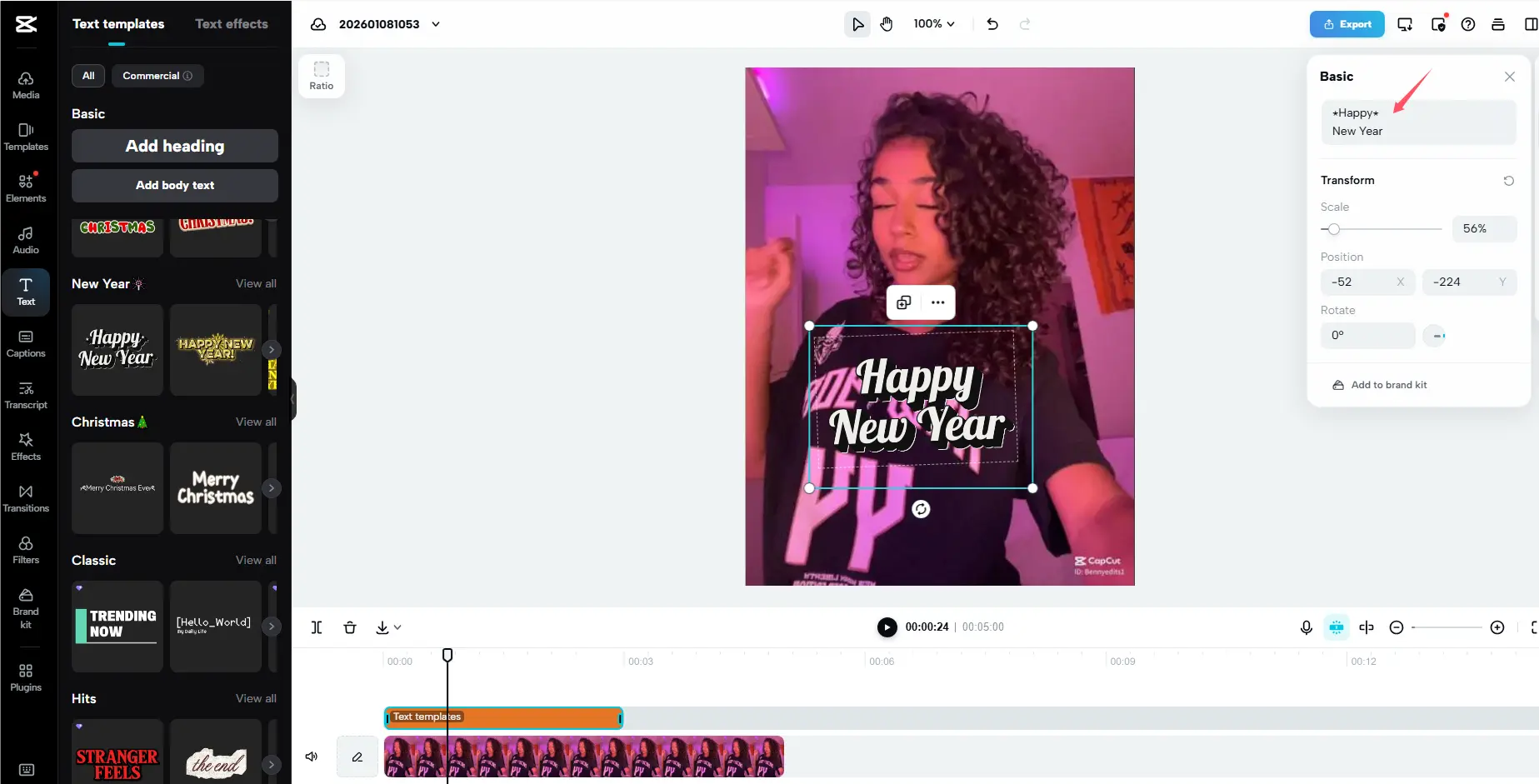
Open the project that created the video, not just the exported MP4. Move the playhead to a moment where the words are visible, then try selecting the text on the canvas or in the timeline. CapCut's current help says that Web users can select the text element on the canvas or timeline and edit it from the panel on the right; PC users select the text layer in the timeline and use the Text or Inspector panel; mobile users tap Text, choose the text track, then tap the text to modify it.
That is a useful working test, not a forensic rule. A project can contain nested clips, templates, or an already-exported source. The practical question is whether changing or hiding a selected layer makes the words disappear while the picture beneath remains. If it does, use the project-layer route. If no selectable layer controls the words, treat the clip as a visual-editing problem until you can obtain a cleaner source.
For a separate subtitle file or player track, use the subtitle-type diagnosis. This CapCut guide focuses on the project controls you can inspect.
| What you can inspect | What it usually means | Best next move |
|---|---|---|
| A text or caption clip can be selected in the CapCut timeline | The wording is still an editable project element | Edit, shorten, hide, or remove that element, then preview and export a new version. |
| A caption lane or imported subtitle item is selectable | The timing and text may be managed separately from the video image | Edit or remove the caption item; do not repair pixels that you can simply change. |
| Words are visible but no project element affects them | They may be part of the source clip, a flattened nested export, or a template output | Check for a clean master. If none exists, compare crop, cover, and visual-cleanup options. |
| You only have a finished export | The visible text may already be part of the frames | Protect the original file and test one representative section before committing to a workaround. |
Desktop is the clearest place to inspect a longer timeline. Keep a copy of the project first, then position the playhead where the text begins. Click the text layer directly in the timeline. CapCut's current PC guidance points to the Text or Inspector panel for modifying the selected content; the layer itself controls when the text appears, so check its start and end points before you remove it.
If you only want to correct wording, edit the selected text rather than deleting the layer. If you want it gone, remove the selected text or caption element, then play from before its first frame until after its last frame. The expected result is that the words disappear while the underlying video remains unchanged. If deleting the layer also removes a visual you need, undo and inspect whether that visual was actually a combined asset rather than separate text.
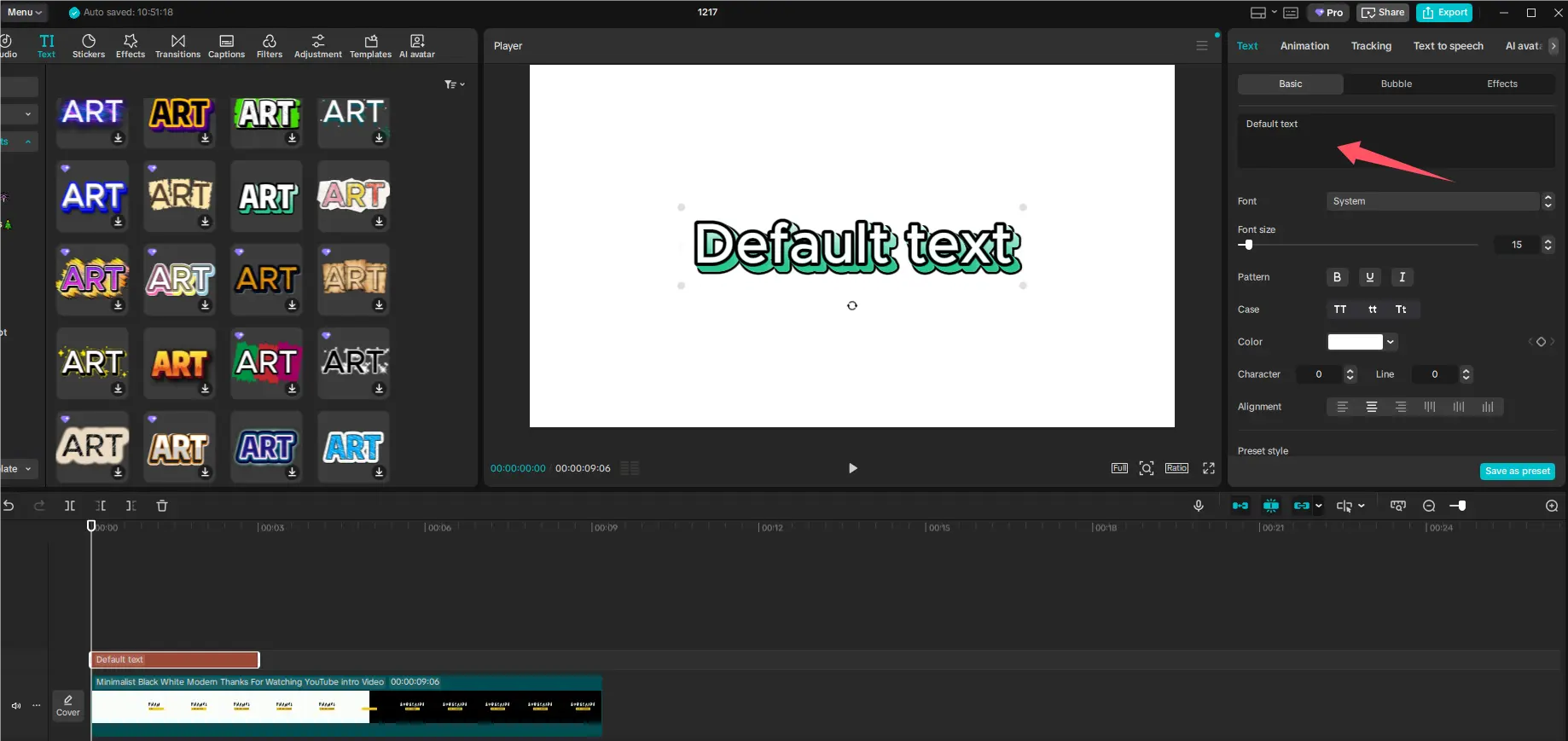
The workflow is the same on every device—select the independent text element before you edit—but the control point moves. On CapCut Web, select the text on the canvas or timeline and edit it in the right-side panel. On the mobile app, tap Text, select the relevant text track, then tap the text to modify it. If nothing changes, first confirm that the playhead is inside the layer's duration and that you selected the text track rather than the video clip.
Auto captions and imported subtitle files deserve the same check. They can appear as many short timeline elements, so inspect a few points across the edit rather than deleting one visible line and assuming the whole caption pass is gone. If your project still behaves unexpectedly, CapCut's help recommends checking for app or browser updates; on mobile it specifically warns against clearing app data or uninstalling if local projects have not been backed up.

A baked-in overlay has already been rendered into the frames. Removing a text layer cannot reveal picture information that is no longer available as a separate layer. CapCut's own removal guide describes crop, a freeze-frame cover, and desktop AI removal as different ways to approach this kind of edit. They solve different problems and produce different tradeoffs.
A crop, freeze-frame cover, and reconstruction have different costs. Use the method decision table to choose by framing and background motion before testing the option available in your CapCut version.
For an exported Reel or Short with a typo, expired offer, or old caption style, remove captions from video before adding the corrected words back in CapCut.
| Method | Good fit | Tradeoff to check |
|---|---|---|
| Crop | A small label sits on an unimportant edge | The framing changes; a vertical or product-focused composition can lose useful information. |
| Freeze-frame cover | A short, local patch can sit over a mostly static background | The cover can drift or look frozen when the scene beneath it moves. |
| CapCut desktop AI removal | You have an authorized clip and can review a representative moving section | Complex texture, people, fast motion, reflections, and cuts need full-motion inspection. |
| A dedicated visual-cleanup workflow | Keeping the original crop matters and no editable project layer remains | The result still depends on the area behind the words; test before rebuilding a whole edit around it. |
Before

After

If the words cover a face, product detail, gesture, or moving background, first ask whether a clean master or original CapCut project exists. That source is usually safer than repairing an already-rendered export because it preserves the underlying image rather than asking any tool to infer it.
When a clean source is unavailable and you own the footage or have permission to edit it, a visual-cleanup workflow can be the more appropriate route. RemoveText.video is designed for baked-in text, subtitle, caption, logo, and authorized-watermark areas; it is not a replacement for deleting an editable CapCut layer, and it should not be used to remove ownership, attribution, safety, or legally required disclosure marks.
Watch the controlled caption example in motion before building the next edit around a repair. After cleanup, import the reviewed result into CapCut and add the corrected captions as editable layers there.
The last step is not just clicking Export. Start playback shortly before the text first appears and continue until after it disappears. Watch at normal speed, then pause on the first and last visible frames. Look for timing gaps, a leftover shadow or outline, a crop that changed the composition, and any patch that breaks when the camera moves or the scene cuts.
CapCut's current removal guide places Export after previewing the edit and lets you choose output parameters such as quality, frame rate, bit rate, and format. Keep those aligned with the intended delivery. If the original project used a vertical social format, do not let a quick crop or a changed canvas size silently turn it into a different composition.
If the next edit needs a completely new soundtrack, you can remove audio from video in your browser before importing it again. This removes the entire audio track, including speech and music.
Preparing an Instagram Reel for a new edit? Identify the caption source first.
The usual reason is simple: the text track is not selected, the playhead is outside its duration, or you are working with a flattened video instead of the original editable element. A template, nested clip, imported asset, or already-exported source can make the same words look like normal CapCut text even when there is no independent layer to delete.
CapCut changes labels and layouts across desktop, Web, and mobile, so treat the UI paths here as a current guide rather than a promise that every regional build looks identical. Refresh this page when CapCut materially changes its text, captions, or AI-removal interface; the underlying decision stays stable: edit a source layer whenever you can, and assess a visual repair only when you cannot.
When the auto captions are separate timeline elements, edit or remove those elements rather than the video clip. Review the full sequence because one caption pass can contain many short items.
If the imported subtitles appear as separate timeline text items in your project, they can be managed separately from the picture. Check several points in the timeline before exporting so you do not leave parts of the caption sequence behind.
CapCut documents crop, freeze-frame cover, and desktop AI-removal approaches for text that is already in a video. They are visual edits, so the right choice depends on the background and whether you can accept a changed crop or a repaired area.
Yes, when the text was a separate project layer: the original video beneath that layer was never replaced. That is why returning to the original project is preferable to working from a flattened export.
Only edit footage you own or have permission to edit. Do not remove ownership, attribution, provenance, safety, or legally required disclosure marks.
Tips & Resources · Updated
A clear way to distinguish viewer controls, subtitle tracks, and words that have actually been rendered into the picture.
Guide · Updated
A decision guide for editors who need to remove text without cropping an authorized video or sacrificing its composition.