Tips & Resources · Updated
Hardcoded vs. Soft Subtitles
A clear way to distinguish viewer controls, subtitle tracks, and words that have actually been rendered into the picture.
You can remove subtitles from MP4 without changing the picture when the subtitles are a separate track. If the words have been burned into the frames, removing a track will leave them visible. A nearby SRT file introduces a third possibility: your player may be adding subtitles that are not inside the MP4 at all.
RemoveText.video · Published · Updated
Start by deciding what you need. Turning subtitles off is enough for watching. Creating a file that another person can open without that subtitle track requires a new export or a remux. Keep your original MP4 while you identify the right route.
Play a section with visible dialogue and open the player's subtitle controls. In VLC Desktop, the subtitle documentation describes choosing Disable from the available subtitle tracks. Menu placement can vary by platform.
If the words disappear, you have confirmed that the player can control them. You have not yet established whether the track lives inside the video file or beside it.
| What you find | What to do next |
|---|---|
| An accompanying SRT or other subtitle file supplies the words | Disable that file for playback or leave it out of the delivery folder. |
| The MP4 contains an independent subtitle stream | Create a new MP4 without that stream. |
| The lettering is part of the actual picture | Return to the original editing project, or assess visual cleanup. |
A missing subtitle menu is not proof of burned-in text. Check the file itself, especially when an unfamiliar player cannot expose its tracks. Our subtitle-type guide explains the distinction in more detail.
Look in the video's folder for a companion file such as interview.srt beside interview.mp4. Some players load matching subtitles automatically. Copy only the MP4 into an empty test folder, reopen that copy, and disable any subtitle selection that remains active.
If the words disappear, there may be nothing to erase from the picture. Keep the subtitle file in your archive and omit it from the particular delivery that should have no subtitles. There is no need to destroy the only copy of a useful transcript.
Continue with the stream inspection below if subtitles remain, or if the delivered MP4 must contain no subtitle streams. A file can contain a subtitle track while also having an external subtitle file available, so finding an SRT is not the end of the check.
For a separately stored subtitle stream, FFmpeg can make a new container without re-encoding the selected video and audio. This workflow is useful when you need an MP4 to share and want to avoid another generation of compression.
You will need FFmpeg and FFprobe installed locally; start with the official download page. Run the commands in the folder containing your file, replacing input.mp4 with its real filename. A full quoted path also works.
ffprobe -v error -show_entries stream=index,codec_type,codec_name:stream_tags=language -of json "input.mp4"The FFprobe documentation explains these stream fields. Look for entries whose codec_type is subtitle. An MP4 text subtitle may appear as mov_text. Note the video and audio entries too, including any extra audio languages you need to keep.
No subtitle entry means this check found no independent subtitle stream. It does not rule out an external file, a player overlay, or caption data carried inside a video stream.
ffmpeg -n -i "input.mp4" -map 0:V:0 -map "0:a?" -c copy -sn "output-no-subtitles.mp4"This selects the first actual video stream, excluding attached pictures, plus every available audio stream. It leaves out independent subtitles and other unmapped streams. The optional audio mapping also permits a silent input.
-c copy avoids re-encoding the mapped streams, -sn excludes subtitle streams, and -n prevents overwriting an existing output. These options are documented in FFmpeg's stream selection and output controls. Use a different output name for another attempt.
This is intentionally an ordinary viewing-copy workflow. Extra video angles, cover images, data tracks, and specialized metadata may need a different mapping or workflow. If FFmpeg rejects a stream or the output container, inspect the error before changing codecs or dropping more tracks.
ffprobe -v error -show_entries stream=index,codec_type,codec_name:stream_tags=language -of json "output-no-subtitles.mp4"Confirm that no independent subtitle streams remain, then compare the video and audio entries against your intended delivery. Open the new file and check playback. Stream copying avoids a new encoding pass; it does not make the whole MP4 file byte-for-byte identical to the original.
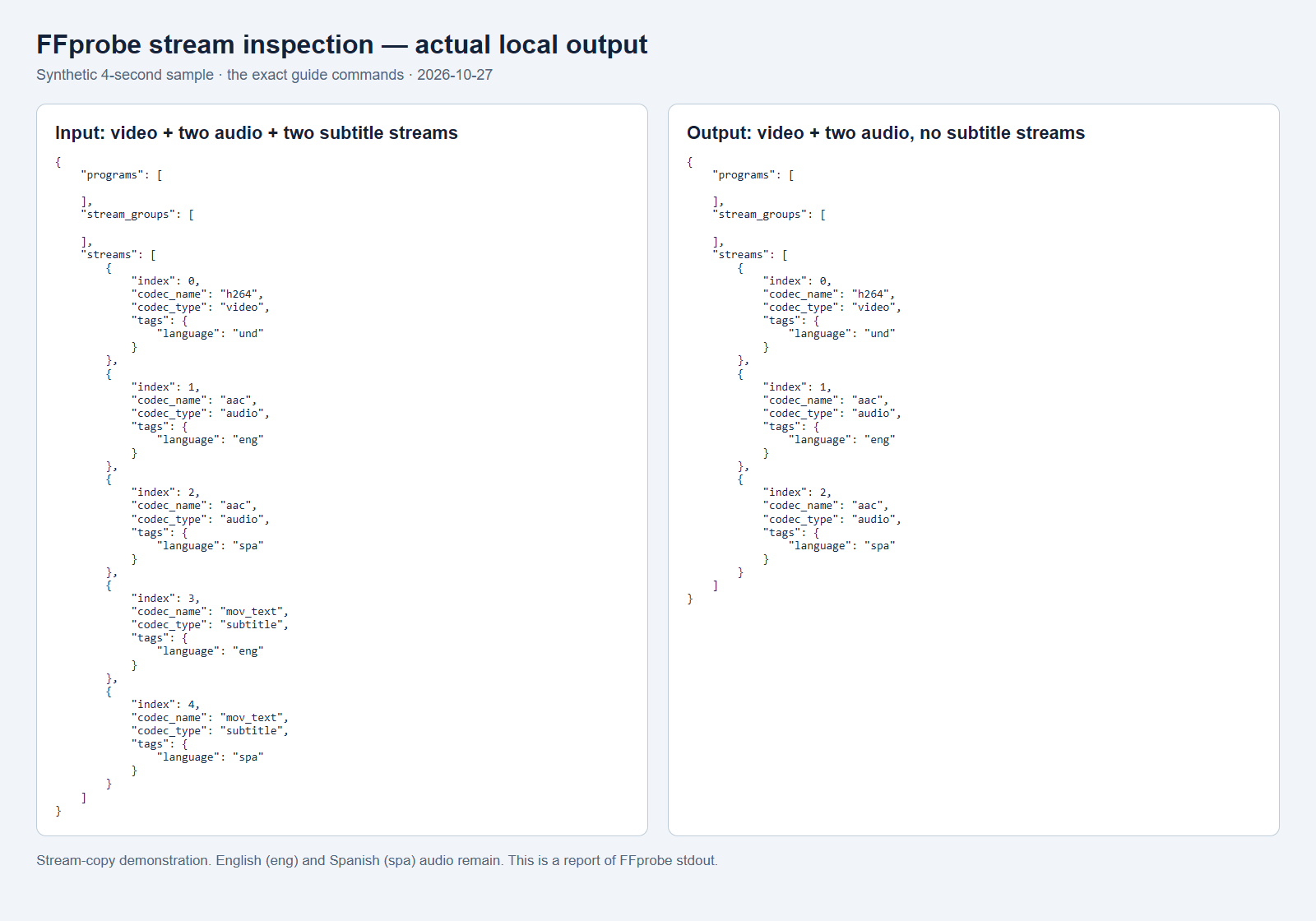
| Stream | Input | Output |
|---|---|---|
| H.264 video | 1 | 1 |
| AAC audio | eng + spa | eng + spa |
| mov_text subtitles | eng + spa | None |
Do not repeatedly remux a file expecting the lettering to fade. You may have removed a selectable translation while a second set of subtitles remains in the image.
Check these possibilities in order:
There is also a technical edge case: some caption information travels inside the video bitstream rather than as a separate subtitle stream. The command above does not promise to remove it. If captions remain switchable despite an empty subtitle-stream list, investigate that delivery format before treating the words as damaged pixels.
First ask for the original project or a textless master. A new export with the subtitle layer disabled preserves the underlying footage more reliably than reconstructing a finished image.
If that source is unavailable, decide whether the subtitle band can be cropped away without losing important content. If the full composition matters, a visual repair may be worth testing on footage you own or are authorized to edit.
To use RemoveText.video, select the MP4 for a local preview, then mark the affected subtitle area. Include the letters, outlines, and shadows with a little clearance. Use separate selections for distinct text regions when possible, keeping within the areas your account allows. Review the credit estimate, sign in when required, and confirm processing before inspecting the result.
The original-file preview is not a processed cleanup sample. Upload begins when you confirm processing. The tool reconstructs selected pixels; it does not strip subtitle streams from the MP4 or create replacement subtitles. Cleanup also re-encodes the video, so check the processing standards if your delivery depends on particular codecs, audio tracks, or timing.
Opaque subtitle boxes, thick decorative outlines, and text over hands or detailed backgrounds are harder cases. An oversized rectangle also asks the repair to rebuild more of the scene. Compare the solid caption background examples before committing to a difficult clip.
Clean burned-in subtitles from your MP4 when the words are confirmed to be in the picture and no clean source remains.
After you remove subtitles from MP4, review the saved file from beginning to end. Listen to the intended audio track and check synchronization near the end, not just the opening seconds. Confirm the duration and framing meet your delivery needs.
For a visual repair, watch the former subtitle area through scene cuts and movement. Look for leftover outlines, unstable texture, or a patch that becomes obvious when a person crosses it. A clear paused frame is not enough.
Keep an editable subtitle source for future versions. If the next task is localization, use the translation preparation workflow after checking the picture.
FFmpeg can remove separate subtitle streams locally without a paid video-cleanup service. Burned-in subtitles require a different workflow; check the processing estimate before using a repair tool.
Yes, but the command above intentionally omits all independent subtitle streams. Inspect their language tags and use explicit stream selection for the version you want. Check the saved file rather than assuming a filename identifies the language correctly.
Changing the filename extension does not alter the media. A conversion may include or exclude separate tracks depending on its settings, but it will not erase lettering already rendered into the picture.
Tips & Resources · Updated
A clear way to distinguish viewer controls, subtitle tracks, and words that have actually been rendered into the picture.
Guide · Updated
Remove hardcoded subtitles before translation with a workflow that separates visual repair, caption authoring, and language QA.