Guide · Updated
Remove Text in Premiere Pro: Titles, Captions & Baked-In Text
Find the title, caption track, or export setting behind the words, then choose the right path for baked-in text.
An interview can remain useful after its name graphic becomes outdated. A speaker changes roles, a course gets a new visual identity, or a webinar needs a version without its original title bar. To remove lower thirds from video, first look for the complete graphic in the editing project. If only a finished recording remains, the job depends on how much of the picture that graphic covers.
RemoveText.video · Published · Updated
Decide what the new version needs: an unobstructed shot, or an updated name and title. Those are different deliverables. With a flattened export, a clear shot requires reconstructing the covered area; a replacement name bar may let you finish the edit without exposing that area at all.
A lower third usually identifies someone or supplies context near the bottom of the frame. It can contain several parts: a name, a role, a colored panel, a divider, and an animation. Deleting the text alone can leave an empty shape behind.
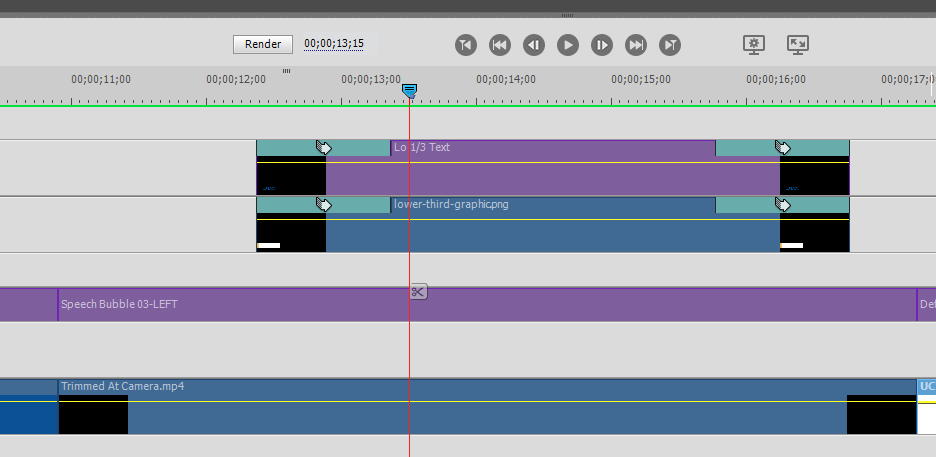
Open a copy of the original project and locate the graphic where it first appears. Disable the relevant elements temporarily, checking which controls the lettering and which controls the background. Some projects put them on separate tracks; others combine them in a template, group, or nested composition. Inspect the contents before removing anything that also contains the interview footage.
The UC ANR lower-thirds guide illustrates a common arrangement: footage underneath a graphic bar, with text above both. That explains why clearing one layer may leave another visible.
For an editable iMovie title on iPhone, Apple documents selecting the clip, opening Titles, and choosing None. A title already inside an imported video will not respond to that setting. For Adobe projects, follow the separate Premiere Pro workflow.
If you only need to correct a job title, edit its text and keep the existing graphic. Otherwise, remove the entire overlay, preview its former duration, and export another version.
The important distinction in a flattened recording is the graphic's coverage, not whether its lettering is white or black.
An isolated name and role leave some of the scene visible around and between characters. Include their outlines and shadows when planning removal. Decorative strokes can extend farther than the main letters, so a selection that looks adequate at normal size may leave a faint name-shaped residue.
A translucent or tinted backing changes the picture across its full rectangle. Removing the lettering does not remove that tint. Inspect the panel's outer edge, gradient, and softened corners; all belong to the graphic if the goal is a clear shot.
An opaque panel hides everything beneath it. Rebuilding a plain wall is a different challenge from reconstructing fingers, jacket seams, or a microphone. In our opaque-caption example, the white box disappears but the furniture beneath it remains visibly smeared. That is a caption-box test, not a lower-third demonstration, but it shows why removing a panel does not guarantee a usable background.
Before you remove lower thirds from video, mark where each graphic begins and ends. Include every recurrence when a speaker returns after another shot.
Watch three moments closely. During the entrance, a backing panel may stretch across the frame before settling. During the hold, a hand or microphone may pass behind it. During the exit, fading edges can remain after the main words disappear. A box drawn around the final resting position can miss the animation's earlier path.
Use the shortest practical section containing those difficult moments for an initial test. Prepare that excerpt in your editor, keeping a little footage before and after the graphic so you can inspect the joins. This is an editing step, not an automatic trimming feature of RemoveText.video.
If several appearances use different positions or cross different shots, treat them as separate editing problems. A single large rectangle across an entire interview asks the cleanup to affect far more picture than one short name introduction requires.
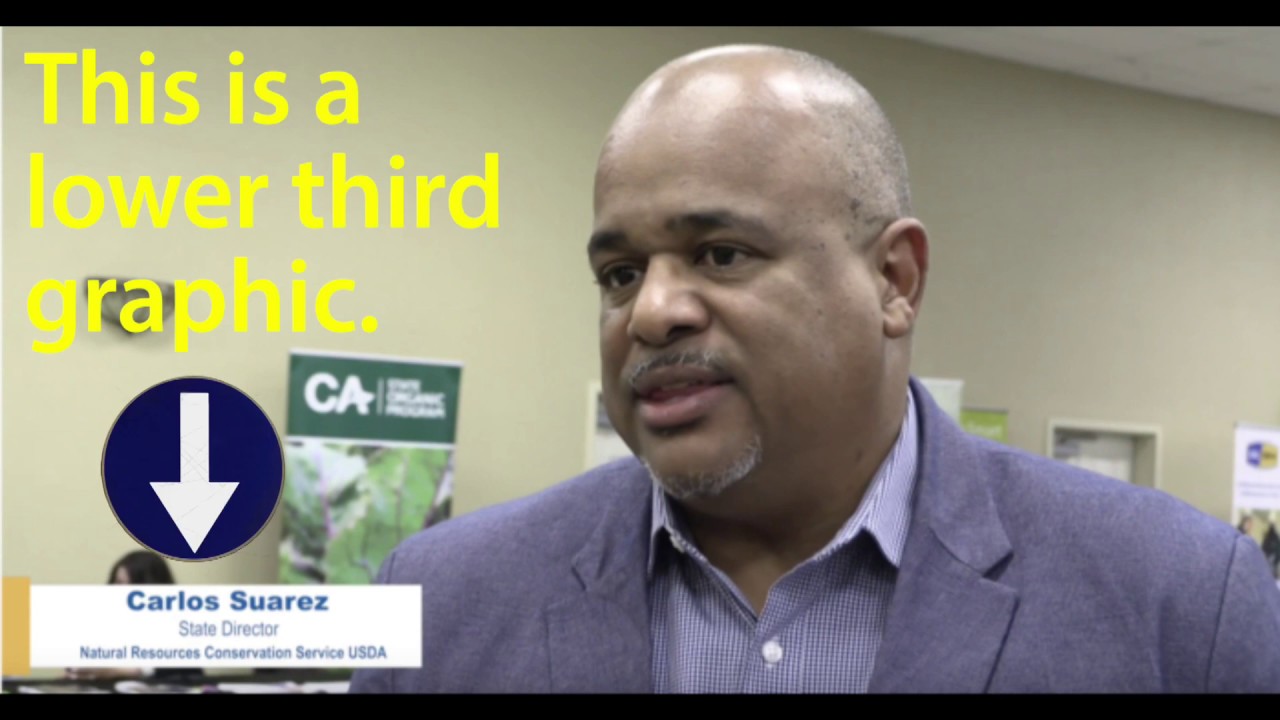
Lower-third interview demonstration by Dustin Blakey
Use a copy of footage you own or are authorized to edit. Keep the original recording available throughout the revision.
Moving graphics must remain within the selected regions. Do not assume the selection follows a sliding bar automatically. If covering its whole path would require a large area over important details, a different edit may be more useful than repeated cleanup attempts.
You may not need to remove lower thirds from video all the way back to an exposed background. If the final cut needs a new speaker identification, consider rebuilding the graphic instead.
An opaque replacement can conceal the old bar if it covers the old graphic at every visible moment. Make its start, end, shape, and animation deliberate. A translucent replacement or a shorter panel can allow old lettering to show through. Check before and after the new bar settles, not only its fully displayed state.
Confirm the wording against the recording's context. Updating a person's current job title can misrepresent a historical interview if viewers assume that was their role when it was filmed. A dated identification may be more accurate than silently substituting today's title.
If the bar sits along an expendable edge, a crop can work, provided the resulting composition still fits the delivery. If it covers meaningful gestures or detailed clothing, a cutaway or another camera angle can avoid an unreliable repair. You can compare crop, cover, and cleanup before choosing the final treatment.
Review more than the absence of words. Watch for bent seams, repeated texture, flickering panel edges, and a patch that becomes visible when the speaker moves. Confirm that the new identification remains readable and does not collide with dialogue captions.
When importing a processed file back into the timeline, compare its start, end, and sound synchronization with the original. The processing standards explain that cleanup re-encodes video and that timing, codecs, and individual audio tracks can differ. Do not assume the downloaded result is an identical technical replacement for the source.
The lettering and panel may be separate editable elements, or the selection may have covered only the words. Inspect which case applies. For a burned-in graphic, extending the selection to the full panel defines the intended target, but it also increases how much background needs reconstruction.
An exported name bar usually has no editable text field. Remove or conceal the old wording, then add the replacement in your editor. Keep that new text editable so the next revision is simpler.
No. Vimeo's lower-third controls manage graphics in the production environment. Hiding one now does not erase pixels already captured in a past recording. Look for a clean recording feed or use the exported-video workflow.
If you need to remove lower thirds from video and no editable source remains, start with the most demanding short section. Test the lower-third area, then decide whether the repaired shot is suitable for your finished edit.
Guide · Updated
Find the title, caption track, or export setting behind the words, then choose the right path for baked-in text.
Guide · Updated
Check editable titles, compare Free and Studio options, and choose between a patch and Object Removal.