Guide · Updated
Remove Subtitles from MP4: Tracks or Burned-In Text
Check external subtitle files and embedded tracks, make a copy without subtitle streams, or handle burned-in words.
To remove text in DaVinci Resolve, start with the timeline and your edition. An editable title can be deleted in the free version. Words already inside a video frame need a visual repair, and the built-in Patch Replacer and Object Removal effects require Studio on desktop.
RemoveText.video · Published · Updated
That distinction matters more than finding a particular button. A name label over an empty wall, a caption crossing someone's fingers, and a separate Text+ title may look similar in the viewer, but they need different treatment.
Blackmagic's current Studio feature comparison lists both repair effects as Studio features. A tutorial showing them does not mean they are included in the free desktop edition.
| What you have | Useful starting point | Edition |
|---|---|---|
| Separate Text, Text+, or subtitle clip | Edit or remove the timeline element | Free or Studio |
| Small burned-in label with a suitable nearby background | Clone a patch over the label | Patch Replacer: Studio |
| Burned-in lettering where other frames provide useful background | Isolate the region and analyze the shot | Object Removal: Studio |
| No suitable repair or no Studio license | Find a clean source, reframe, or use a deliberate cover | Depends on the chosen edit |
For the last case, compare crop, cover, and repair before spending time on an effect that cannot supply the missing picture.
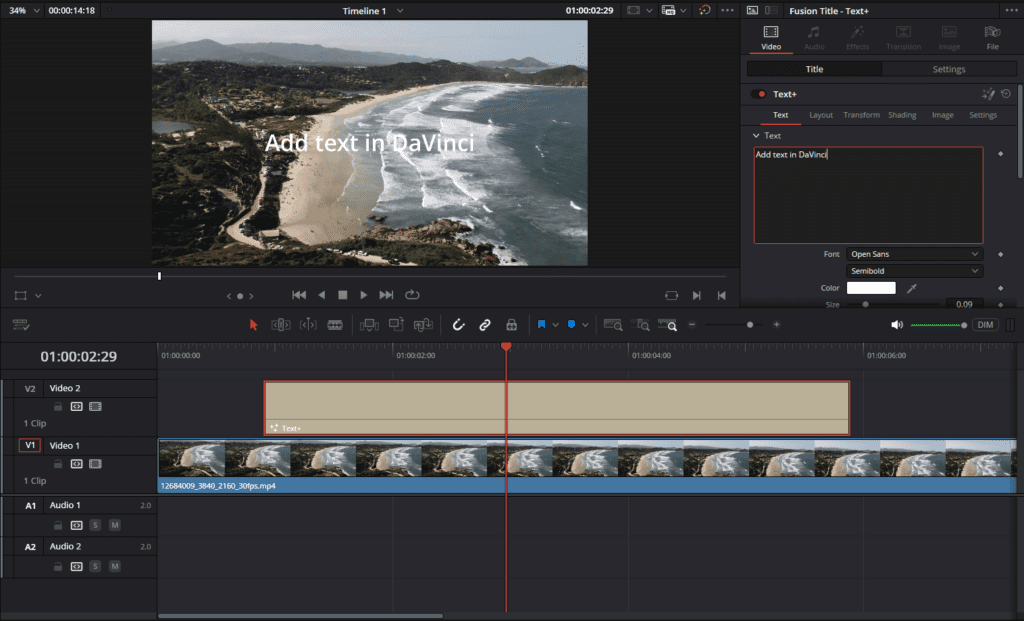
Open the original project and save a duplicate timeline. On the Edit page, move to a frame containing the words. Select the title above the footage and inspect its text controls. If changing that element changes the wording, you have found the editable source.
Delete only the unwanted title clip, leaving the picture and sound below it in place. If the graphic contains a background bar or other design elements you want to keep, edit the wording instead. For a compound or Fusion title, inspect its contents before removing the entire composition.
Subtitles may occupy a separate timeline track. Remove the unwanted caption clips or exclude that track from the intended delivery, then check the render settings so you do not burn the old captions back in. Blackmagic documents titles and subtitle tracks as independently editable timeline elements.
A finished MP4 imported into Resolve does not regain those original layers. If your real task is deleting a selectable stream from an existing file, follow subtitle-track removal for MP4.
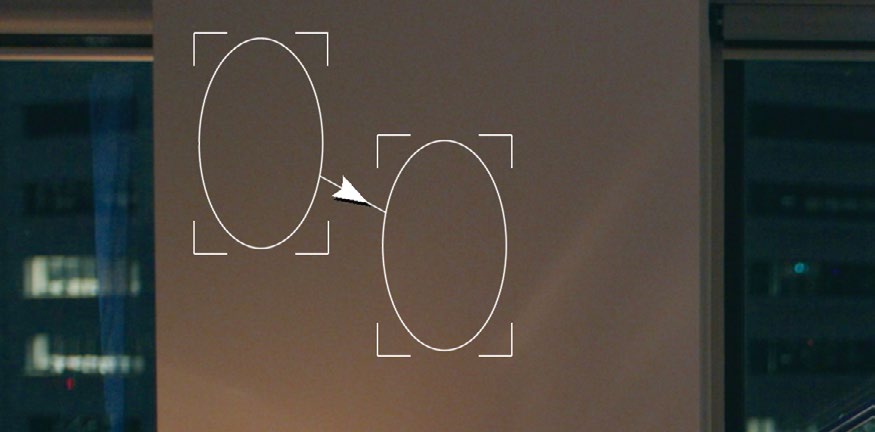
Before you remove text in DaVinci Resolve with a cloned patch, look beside the lettering. Is there an unobstructed area with matching texture, perspective, lighting, and movement? A blank section of the same wall can be useful; another person's sleeve usually is not.
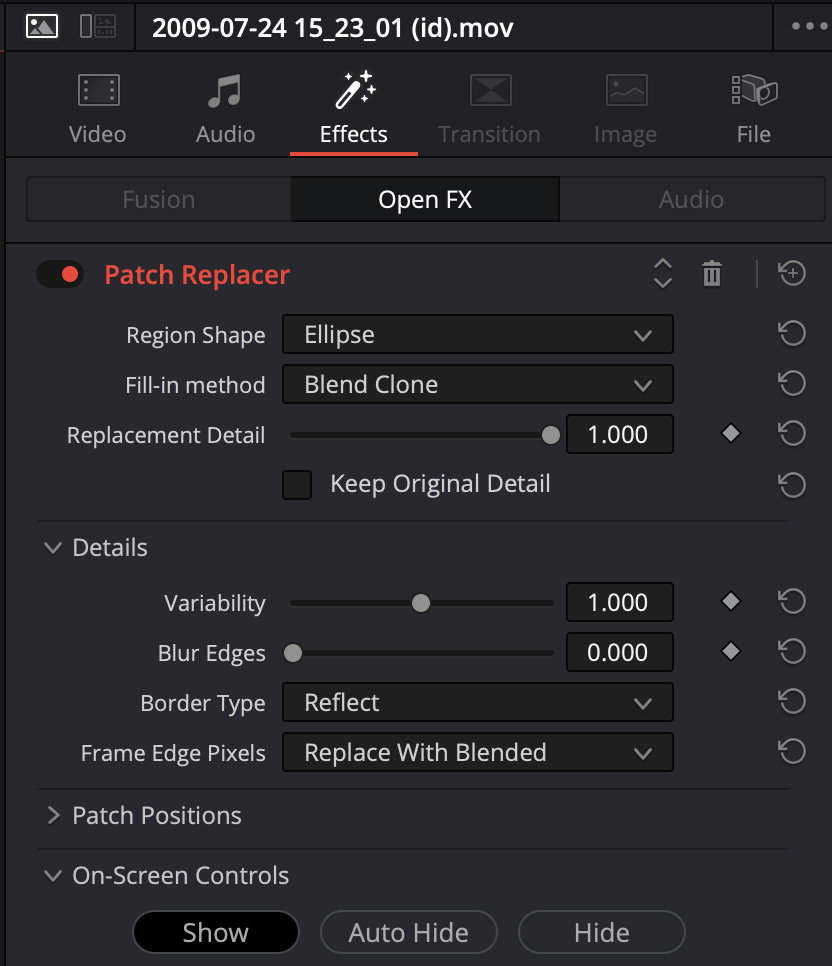
In Studio, select the affected shot on the Color page. Add a serial node for the repair and label it clearly. Open Effects, find Patch Replacer in Resolve FX Revival, and place it on that node. Blackmagic's Colorist Guide demonstrates this workflow with separate source and target controls.
Position the target over the text, including its shadow and outline. Put the source over the clean area you want to copy. Adjust the patch shape, size, and softness until the edge blends without creating a large soft rectangle. Keep the source away from the unwanted lettering throughout the shot.
Play the result. Watch recognizable lines and repeated patterns: a cloned wall seam or duplicated chair leg can reveal the edit even when the letters disappear. If the source region becomes obstructed, a patch that worked at the beginning may stop matching halfway through.
Moving footage needs an appropriate FX tracking setup or manual adjustment. Applying the effect alone does not establish a correct track. For a fixed screen overlay over a panning scene, do not make the target follow the wall; the target must continue covering the lettering.
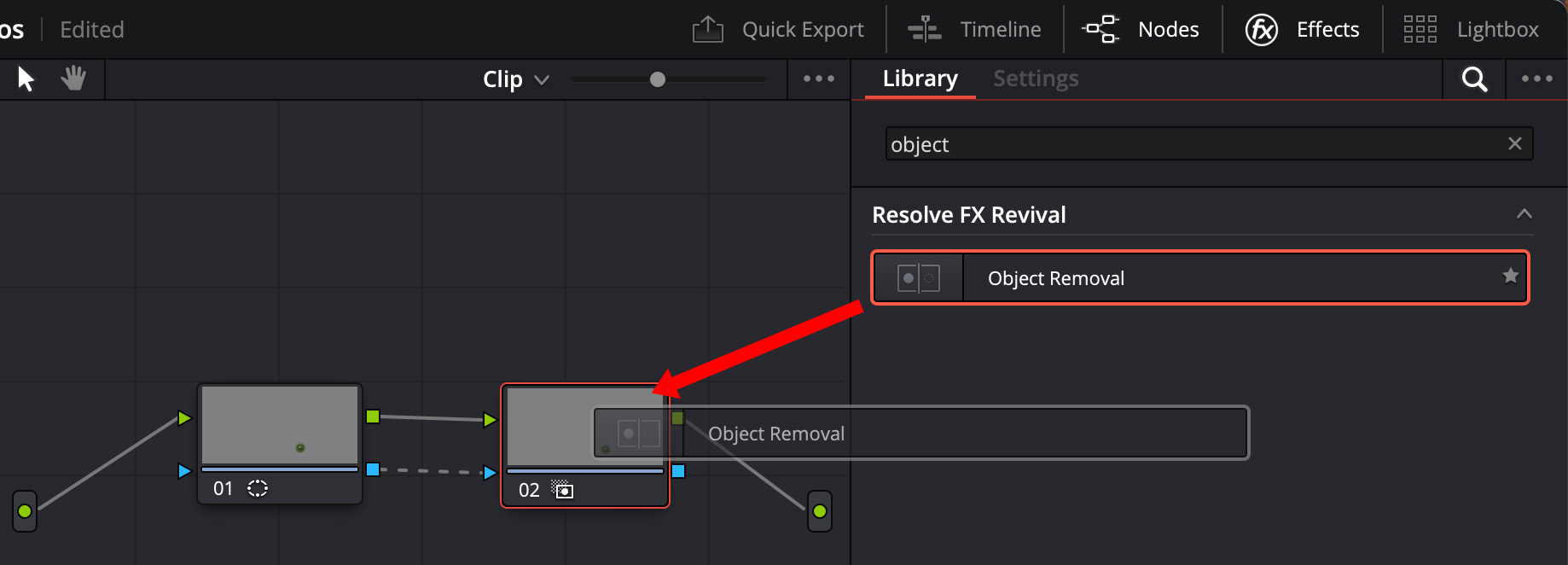
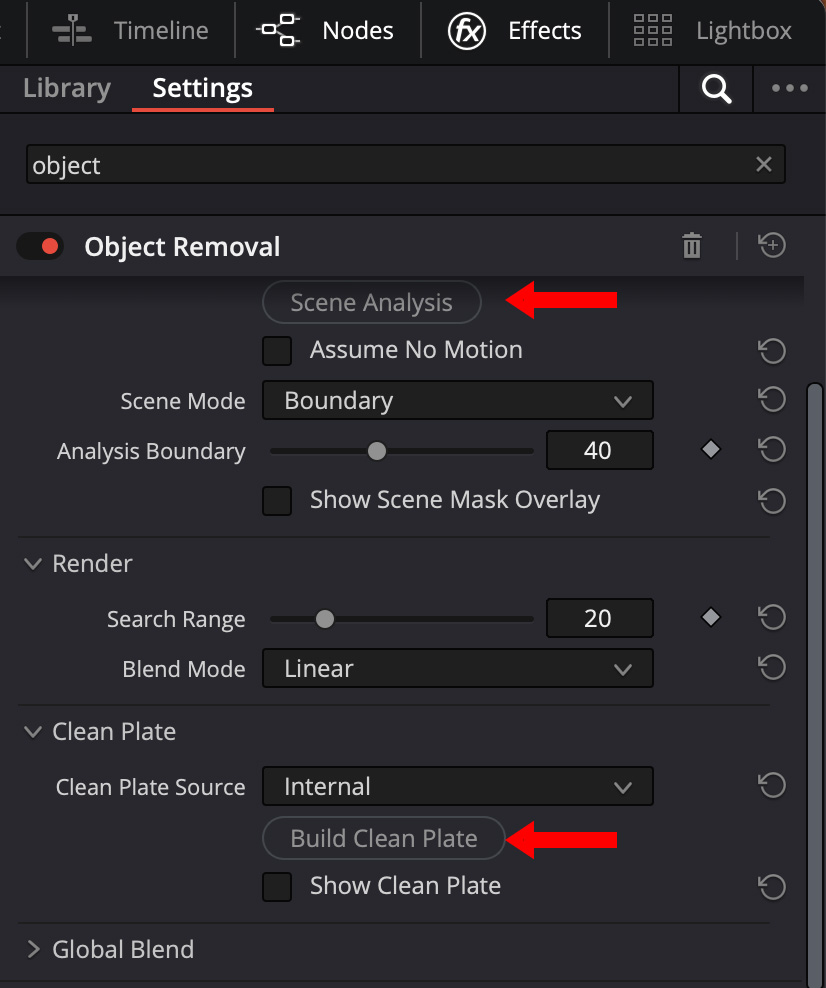
Object Removal is a different way to remove text in DaVinci Resolve: it analyzes the shot for replacement information. Work on one continuous shot, and keep the original available for comparison.
Blackmagic's Color workflow describes this setup:
A successful analysis is not a finished edit. If the words cover the same intricate detail in every usable frame, the effect may have too little information to reconstruct it convincingly. A larger search range cannot manufacture an unobstructed face that the clip never shows.
MrAlexTech: Object Removal in DaVinci Resolve 18 Studio
Review the repaired region at normal speed, then pause at the worst moment. Different defects call for different changes.
| What you see | What to check next |
|---|---|
| A dark outline remains | Expand the target just enough to include the original stroke, glow, or shadow. |
| The patch slides away from the words | Check the target's movement. Background tracking may be wrong for a fixed screen overlay. |
| Object Removal leaves gray areas | Check the mask and available background. Search Range or Build Clean Plate may help, but inspect the result again. |
| Straight edges bend or textures repeat | Choose a better source region or reconsider the method. More softness can hide an edge while damaging detail. |
| The repair breaks at a cut | Treat the next shot separately instead of carrying one repair across unrelated scenes. |
Gray fill has been documented by Blackmagic as a sign that usable replacement content was not found under the current settings. It is not an instruction to keep increasing every control.
Large opaque caption boxes deserve extra caution. They hide the spaces between letters as well as the letters themselves. Our solid-background caption results show this problem in RemoveText.video, not in Resolve: the box disappears, but covered furniture can remain visibly distorted. Use the example to judge the risk, not to predict either application's result on your footage.
Sometimes the most usable edit is a replacement graphic covering the original label. Sometimes a modest crop removes an unimportant edge. Both change the presentation; neither recovers the hidden source pixels.
If you need to remove text in DaVinci Resolve while preserving a face, product feature, or detailed background, look for a clean master before committing to reconstruction. For client work, ask for the source project or a version exported without graphics. A few minutes recovering that asset can save a long, fragile repair.
When the text is burned in and the native approach is impractical, test a short exported clip with RemoveText.video. Choose an excerpt containing the hardest movement, not just the opening frame.
Select the file for a local preview, draw separate close regions around disconnected text, and include the complete outline of each target. Review the estimated credits, sign in, and confirm processing. The local preview shows the original; cleanup requires processing. An opaque backing panel must be included if you want the whole graphic removed.
Inspect the downloaded result before importing it into Resolve. Add replacement wording as a new title there. Check the first and last frames, dialogue synchronization, and how the clip fits the edit: the processing standards explain that cleanup re-encodes video, and timing, codecs, frame-rate representation, or audio-track details can change.
Yes, when the words are editable titles or captions. Cropping and covering are also options when the composition allows them. The two built-in repair effects described here require Studio; they are not part of the free edition's licensed feature set.
No. It identifies an area for an operation. The repair still needs an effect, a suitable image source, or a compositing method. Confirm that the entire lettering is covered, then evaluate the actual replacement pixels in motion before rendering your final delivery.
Guide · Updated
Check external subtitle files and embedded tracks, make a copy without subtitle streams, or handle burned-in words.
Guide · Updated
Deal with name bars, job titles, backing panels, and animated graphics without overlooking the full overlay.