Guide · Updated
Remove Text in Premiere Pro: Titles, Captions & Baked-In Text
Find the title, caption track, or export setting behind the words, then choose the right path for baked-in text.
To remove text in After Effects, first check whether the words are a separate layer. If they are, hide or delete that layer. If the text is embedded in a video file, you need to rebuild the covered picture, usually with a mask and Content-Aware Fill.
RemoveText.video · Published · Updated
That distinction matters before you spend time tracking anything. A title added inside your composition still has editable source text. An old label inside an imported MP4 does not. This guide takes the second case through one controlled repair, then explains what to change when the fill looks wrong.
Open the composition that created the video and place the playhead where the words appear. Look for a text layer, including inside any precomposition used for the title. Temporarily switch its visibility off. If the words disappear and the footage remains, keep the layer disabled or delete the intended layer in a saved copy of the project.
If you only need different wording, edit the existing text. Adobe documents editing text layers separately from footage repair. Check whether a background rectangle, shadow, or decorative shape belongs to another layer; removing the letters may leave those elements behind.
When hiding the suspected layer changes nothing, inspect the imported source itself. The text may have been rendered into that file earlier. Keep that original available while you work on the repair.
Start with one shot rather than a complete edited sequence. Choose an interval that includes the hardest movement behind the text. A quiet opening frame alone will not tell you whether the repair survives a hand, camera move, or changing background.
Select the video layer, then use the Pen or Rectangle tool to surround the unwanted lettering. Include its outline and shadow with a little clearance. Avoid including half the frame just because the text stretches across two separate corners.
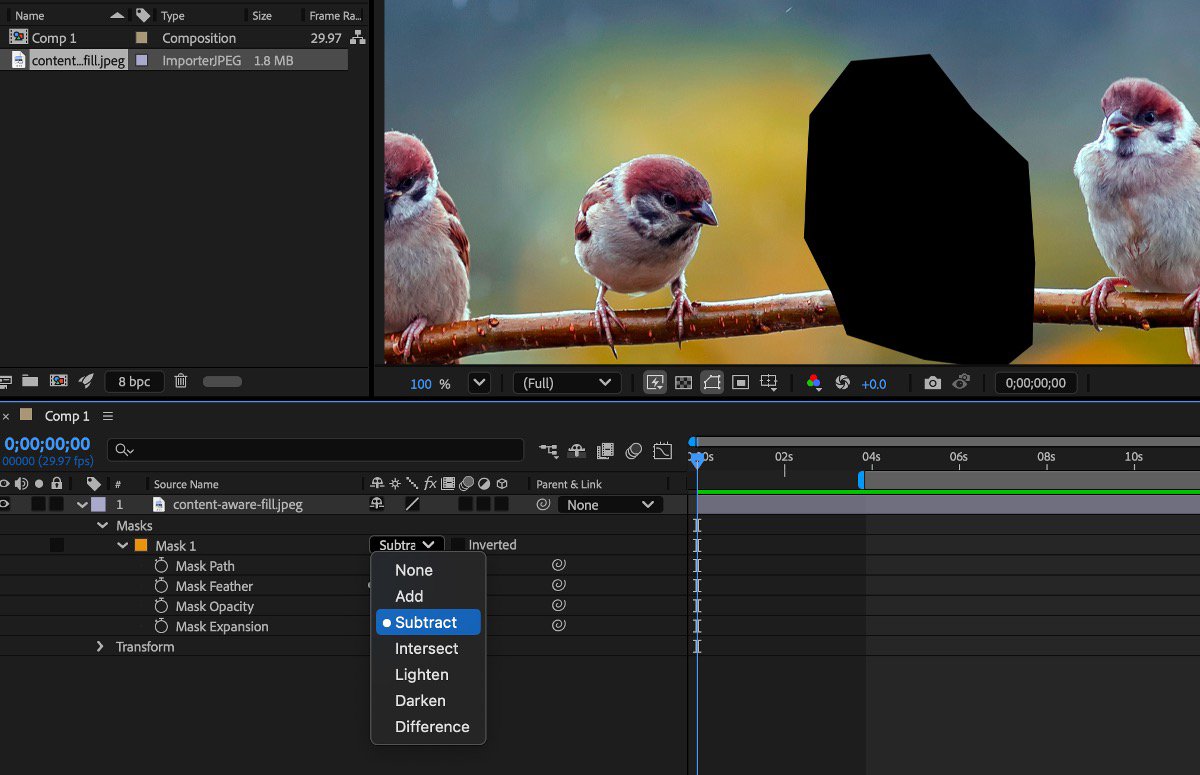
Make sure you created a mask on the footage rather than an unrelated shape layer. A mask controls which pixels become transparent; a shape sitting above the video does not provide the same fill target. Adobe's mask documentation explains that relationship.
For stationary screen text, inspect the beginning, middle, and end before adding unnecessary tracking. If the text moves, select its mask and open Animation > Track Mask. Choose a tracking method that matches the movement, analyze forward or backward, and correct drift where it appears.
Adobe's current Mask Tracking guide also documents tracking controls beside Mask Path. Tracking adds mask-path keyframes; it does not decide which words you want removed. A caption that changes shape or jumps between positions may need manual adjustments or separate sections.
You can leave the mask at None while checking the track so the text remains visible. Change it to Subtract before filling. The target area should now be transparent.
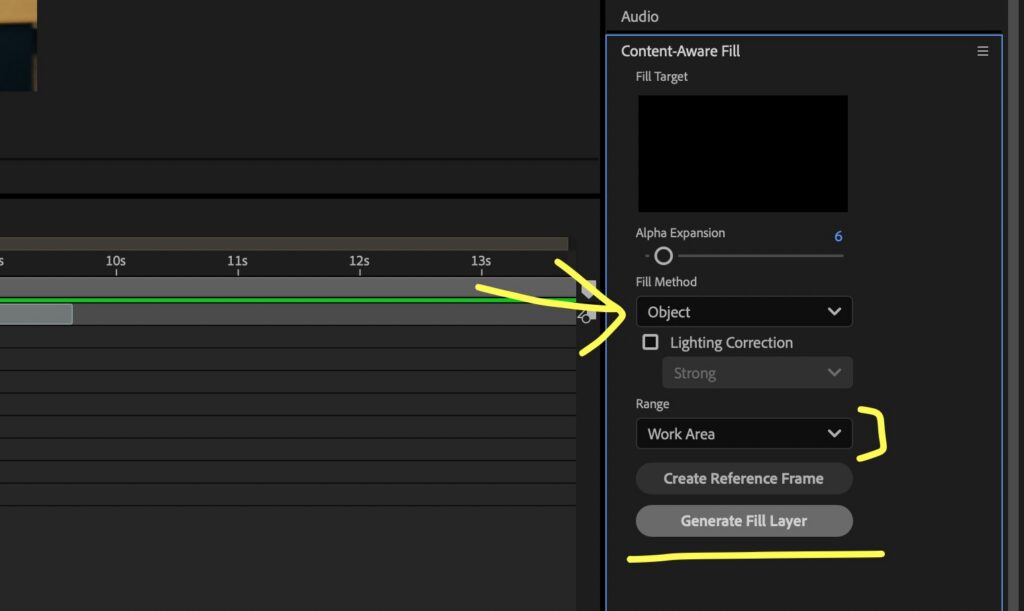
Set the work area around the shot you want to repair. Open Window > Content-Aware Fill and choose Work Area for Range. This also limits the frames available for sampling, so include useful nearby frames within the same shot when appropriate. Keep the masked footage confined to the repaired shot, or restore the original outside that interval; a short fill does not repair a transparency hole elsewhere in the composition.
Adobe's guided fill tutorial demonstrates the mask, tracking, subtraction, and work-area sequence. Use that as the basic workflow; change the fill method to fit your footage.
| Fill method | A useful starting point |
|---|---|
| Object | Movement where surrounding frames provide useful replacement detail. |
| Surface | Relatively flat surfaces, such as lettering attached to a sign. |
| Edge Blend | A nearly textureless area where nearby edge colors can blend across the hole. |
These are starting choices, not quality guarantees. Edge Blend cannot reconstruct detailed features simply because the lettering is small. Alpha Expansion enlarges the fill target; increase it only when the target misses part of the lettering or its edge.
For changing illumination, Lighting Correction offers Strong, Moderate, and Subtle settings. Adobe suggests starting with Strong and reducing it if the correction is excessive. It is not needed for Edge Blend. See Adobe's Content-Aware Fill controls for the full settings reference.
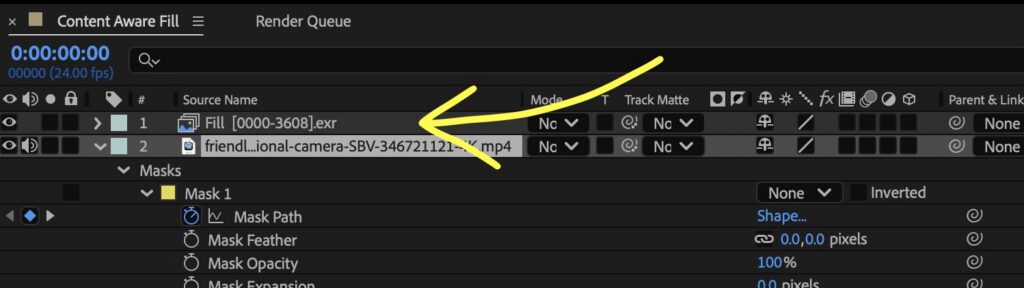
Click Generate Fill Layer. After analysis and rendering, review the fill layer above the footage. Watch the interval at normal speed, then pause where motion is strongest. If you change the mask and generate another attempt, hide or remove the previous fill layer so it cannot conceal the new result, as shown in Adobe's object-removal walkthrough.
Adobe: Content-Aware Fill in After Effects
When you remove text in After Effects, the absence of readable letters is only one test. The replacement should also belong to the scene from frame to frame.
| What you see | What to inspect next |
|---|---|
| A bright fringe or dark outline | Scrub the mask boundary. Check strokes, shadows, and motion blur before expanding the whole area. |
| A patch drifting away from the words | Inspect mask-path alignment at the first bad frame, then correct the track. |
| A soft region over a face or patterned shirt | Ask whether enough usable picture information exists. Enlarging the hole may increase the reconstruction problem. |
| An abrupt change at a cut | Separate the shots and reassess each background. |
| A repair that looks fine when paused but pulses during playback | Compare adjacent frames and changing illumination, not only one successful still. |
An opaque caption box hides the entire area beneath it. Its color does not make the lost detail available again. Our separate RemoveText.video opaque-caption examples illustrate this limitation with actual outputs; they are not After Effects test results.
Treat these checks as diagnosis, not guaranteed fixes. If the text covers a critical facial expression or product detail, look for a clean source before accepting an invented replacement.
A reference frame is a manually prepared guide to how the repaired area should look. Adobe describes this option in its reference-frame overview.
Choose a useful problem frame and select Create Reference Frame. With the standard Photoshop workflow enabled, repair that frame in Photoshop, save it to the same name and location, return to After Effects, and generate the fill again. This lets your paint work guide the result; it does not prove that every later frame will match.
You still need to inspect moving boundaries. A carefully painted wall cannot supply an accurate hand when a hand crosses that region later. That is a different visual problem, not merely an unfinished still image.
If you do not need the compositing controls, RemoveText.video offers a separate workflow for embedded text. Select an MP4, MOV, or WebM and inspect the original locally. Draw close selections around the text areas, review the credit estimate, sign in, and confirm processing to upload the file.
Separated text should use separate selections where possible. Moving words must stay inside the selected areas; this workflow does not provide AE mask-path tracking. Check the processing standards and real cleanup comparisons, then test the selected text area on footage you own or may edit.
Review the downloaded result before importing it into your composition. Cleanup re-encodes the file: check the first and last frames, timing, and audio sync after import. Add replacement wording as a new editable text layer there.
Yes. Deleting an editable text layer and generating a fill do not require Photoshop. Photoshop is part of the standard reference-frame route when you need to paint guidance for a difficult shot.
The original video still contains those pixels. The mask and generated fill create a repaired composition without rewriting the source file. An enabled fill layer can still cover the lettering if you remove only the mask. Export the reviewed composition to deliver the finished version.
You can work through it, but repeated caption changes, cuts, and animated words need separate inspection. Finish one representative shot first. If that shot cannot meet your quality requirement, processing the rest will not solve the underlying limitation.
Guide · Updated
Find the title, caption track, or export setting behind the words, then choose the right path for baked-in text.
Guide · Updated
Deal with name bars, job titles, backing panels, and animated graphics without overlooking the full overlay.