Remove Text From a Video in Canva: What Works and What Doesn’t
First identify the text type. A normal Canva text box can be selected and deleted. Canva-generated captions can be edited or removed from the Captions controls before you export. If you only have a rendered video with words inside the picture, crop or cover can be deliberate workarounds, but neither restores what sits behind the text; use a video cleanup workflow only for footage you are authorized to edit.
Published · Updated
Start with the Canva case that preserves the most control
“Remove text from a video in Canva” can mean three different things. Normal text you added to a Canva design is an editable element. Canva-generated captions are editable through its caption workflow. Words already rendered inside an imported or downloaded MP4 are part of the picture. Only the last case needs reframing or visual cleanup.
Open the original Canva design before editing the downloaded export. Canva’s current help says a text box can be selected, edited, or deleted; Canva also documents its Captions tool as a way to generate and edit captions before download. If either control is available, that is the cleanest path.
Do not treat Canva’s image text-removal feature as proof that it can restore hidden pixels throughout a moving video. A still-image workflow and a rendered video have different visual context, especially when the background or camera changes.
The file you have determines the useful Canva workflow.
What you can open
What Canva can help you do
What remains to check
Original Canva design with selectable text
Delete or edit the text element
Preview each scene and export a new version.
Canva-generated captions
Open Captions and edit or delete caption lines
Preview timing, then export without the captions.
Original design but text is inside an uploaded clip
Crop or add a deliberate design element
Confirm the composition and timing still work.
Only an exported video
Look for a clean source; test a video-specific cleanup if eligible
Review motion, detail, and rights before publishing.
Remove text you added in the original Canva design
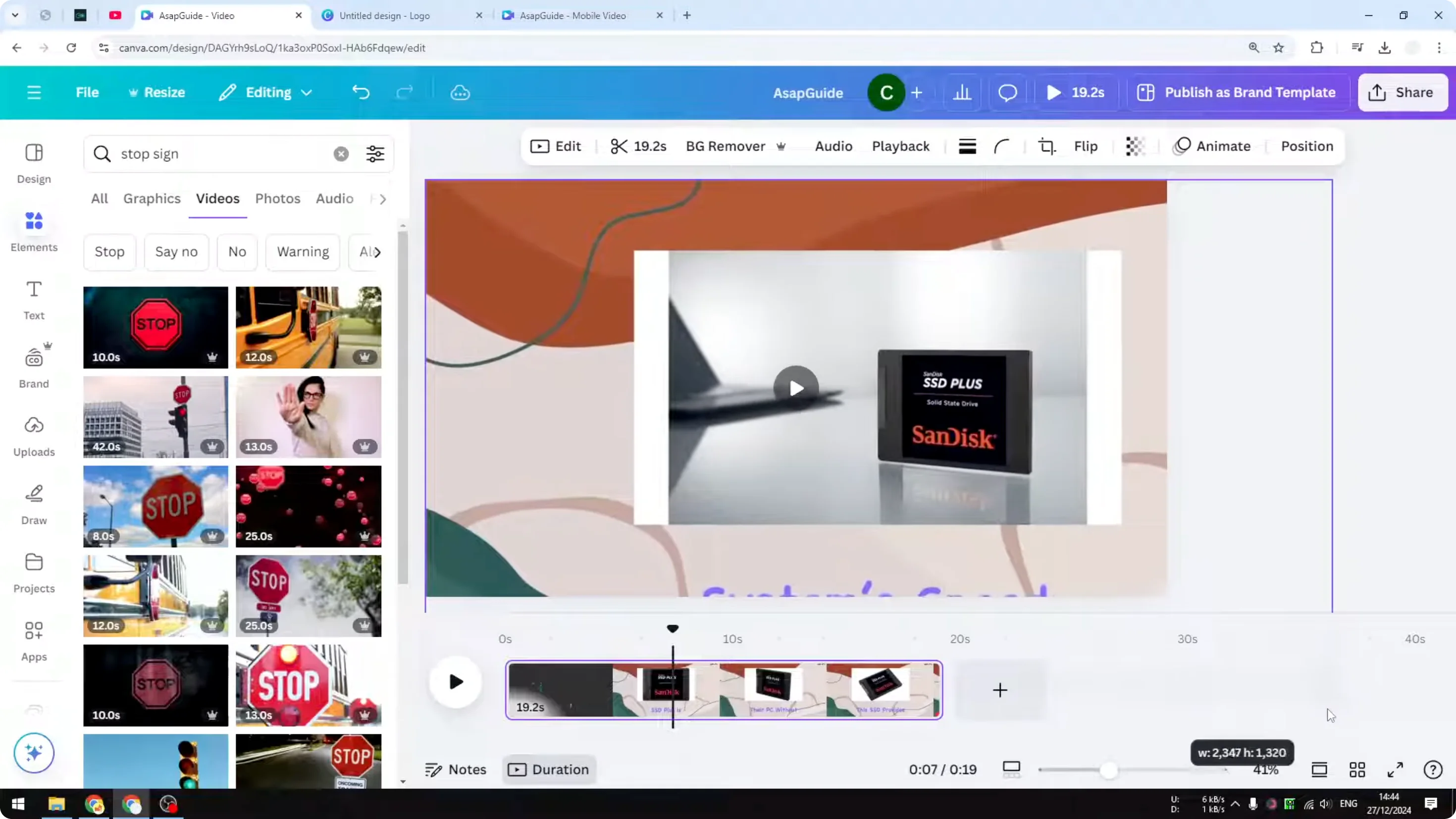
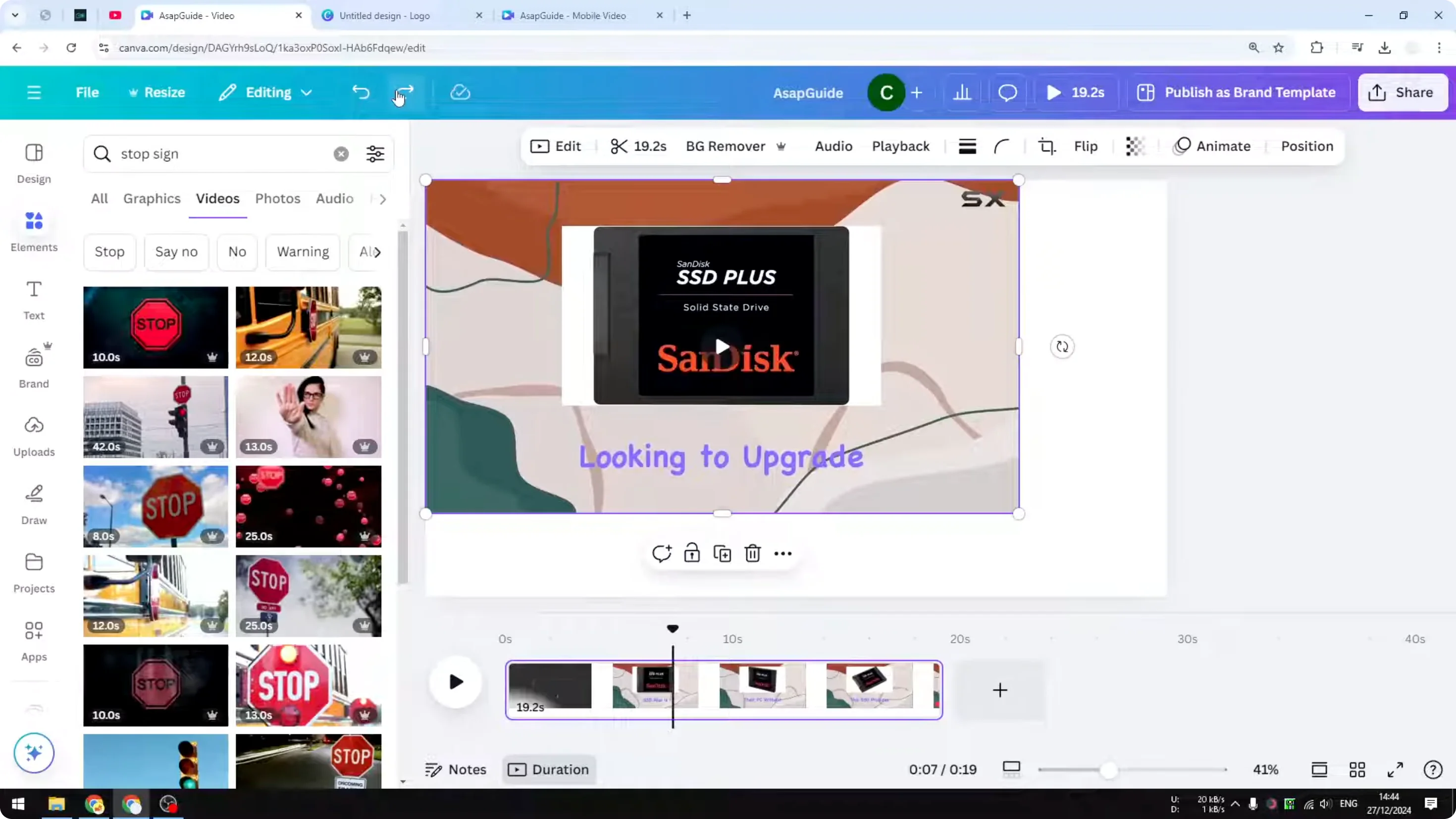
Open the design rather than the downloaded export. Go to the page or scene where the wording appears, click the text box, and use Delete or Backspace to remove it. If you want revised wording instead, double-click the text or use the text controls to edit it. Canva’s video text guide also shows that text can be placed for particular parts of a video, so repeat this check for every scene that contains an independent text element.
Play the full project before downloading. A title or callout can begin later on the timeline or appear on another page. Check the first and last frame of each appearance, then export a new file. If the words select as their own design element, remove them in the source rather than trying to repair rendered pixels.
Open the original Canva design and the scene containing the text.
Select the text element; delete it or edit the copy.
Preview the complete sequence, including entrances and exits.
Download a new version.
Third-party Canva workflow screenshot for interface context. Controls and labels can change; follow the current Canva help for your editor version. Source: ICEdit: Canva video text workflow
Remove captions Canva generated for the video
Canva captions are a separate editable case, even though they look like text on the video. In the Canva design, open the Captions controls for the video. Select the caption line you want to change and edit or delete it; if you no longer want auto-captions in the export, remove the caption set instead. Canva’s caption tool is designed to generate, edit, and export captions from the project.
Choose the smallest change that matches the job. Correct a misspelling by editing that line. Remove one spoken phrase by deleting its line. Remove all visible captions by removing the caption set. Do not delete a caption line just to hide a longer section of speech unless you have checked that the next line does not appear too early or make the meaning confusing.
Preview around the line you removed. This confirms the timing and nearby lines still read correctly, and that no caption remains later in the sequence. Then export the video again. Once this Canva version has been exported with captions visibly burned into the picture, it falls into the third case below—not an editable caption workflow.
Open the Canva project containing the captioned video.
Open Captions for the selected video.
Edit or delete the caption line, or remove the caption set when you want none of them.
Preview the affected time range, then export a new video.
When the words are baked into a video, use crop or cover deliberately
If clicking the visible words only selects the video as one object, Canva cannot expose the hidden pixels underneath as an editable text layer. The original design, a clean export, or the original footage is the best thing to look for next.
When that source is unavailable, a crop can work if the text sits on an edge and losing that part of the image does not remove important context. Reposition the video after cropping and preview the new frame through the whole sequence; a crop that works in one shot can cut off a face, product, or action in another.
A shape, background panel, or other intentional element can cover static text for a short design-led edit. This is not the same as removing the text. It adds something new to the picture, and it needs to be matched to the scene, held for the correct duration, and checked when the footage moves behind it.
If a creator caption is baked into an imported clip, remove burned-in captions before bringing the cleaned video back into Canva to add a new style or call to action.
For any of the three paths, preview the changed scene before downloading. A crop can cut off a subject only when the shot moves; a removed caption can leave an awkward gap; a text element may have a later animation. Once the clean version looks right, export it and retain the Canva design for the next edit.
For an external walkthrough of crop and cover workarounds, this video is included for orientation only; it is not a RemoveText.video demonstration and your Canva layout may differ.
For a silent version you can reuse with another soundtrack, remove audio from video locally in your browser. The tool removes all sound rather than separating voices from music.
External Canva walkthrough covering crop and cover workarounds. Verify the current interface and choose the method that fits your authorized footage. Source: TutorialLab on YouTube
Canva documents its text-removal feature for images. For a video export, first use editable project elements when they exist; otherwise treat crop, cover, or visual cleanup as different workflows with different trade-offs.
How do I remove captions in Canva?
Open the Canva project, select the captioned video, open Captions, then edit or delete the caption line or remove the caption set before exporting again. This works only while the captions remain editable in Canva.
Will cropping remove the text without changing the video?
No. Cropping changes the composition and can remove useful edge detail. It is a good option only when the new frame still tells the story you need.
Can I add replacement text after the old text is gone?
Yes, add the new wording as an editable layer in your editor after you have the right base video. RemoveText.video currently does not replace text inside a video.